
A SaaS startup called me after its Azure bill jumped 40 percent in one month. Nobody knew why. When I connected to the server and ran one command, I found 23 databases. Eleven of them were old test copies, and one held a full production backup that a contractor had restored and forgotten. The team could not clean up what it could not see.
This is why knowing how to run PostgreSQL list databases commands matters beyond trivia. Listing databases is the first step in an audit, a cost review, a migration, and a security check. You can do it with a psql shortcut, a SQL query against the system catalog, or the Azure CLI for managed servers. Each method shows different details, and each has its own permission rules.
In this guide, you will list databases with psql and SQL, read sizes and owners, query an Azure Database for PostgreSQL Flexible Server securely, and troubleshoot the errors that block you.
PostgreSQL list databases
Understand What You Are Listing
A PostgreSQL server (also called a cluster) can hold many databases. Each database is an isolated container with its own schemas, tables, and extensions. A connection always attaches to one database at a time, so you cannot query across databases with plain SQL. For the bigger picture, read this overview of PostgreSQL architecture.
Every cluster starts with three databases:
- postgres: A default database for maintenance and administration.
- template1: The template PostgreSQL copies when you create a new database.
- template0: A clean, unmodified template used to restore or create databases with different encodings.
PostgreSQL stores the list of databases in a system catalog called pg_database. A catalog is a set of internal tables that describe the server itself. Every method in this article reads from that catalog in some way.
On Azure Database for PostgreSQL Flexible Server, you may also see system databases that Azure manages for maintenance. Do not change or drop them. If you are choosing a platform, this comparison of Azure PostgreSQL Single Server vs. Flexible Server explains why new deployments should use Flexible Server.
Pro Tip: In my experience, I start every database audit with the full list, including templates, before I touch anything. Surprises show up in the first query, not the tenth.
Connect Securely Before You List
You need a connection first. If you have never connected, follow this guide to connect to a PostgreSQL database. For a self-managed server on Linux, see the PostgreSQL installation on Linux steps.
Use the built-in postgres database for the connection, because it exists on every server:
psql "host=<server-name>.postgres.database.azure.com port=5432 dbname=postgres user=<admin-user> sslmode=require"This command opens an interactive psql session. The host value is your server address. dbname=postgres connects to the default database. sslmode=require forces an encrypted TLS connection and refuses to connect without it. For stricter checks, use sslmode=verify-full, which also confirms the server certificate and hostname.
After you connect, verify that encryption is active:
SELECT ssl, version, cipher
FROM   pg_stat_ssl
WHERE  pid = pg_backend_pid();
After running the query above, I got the expected output shown in the screenshot below.
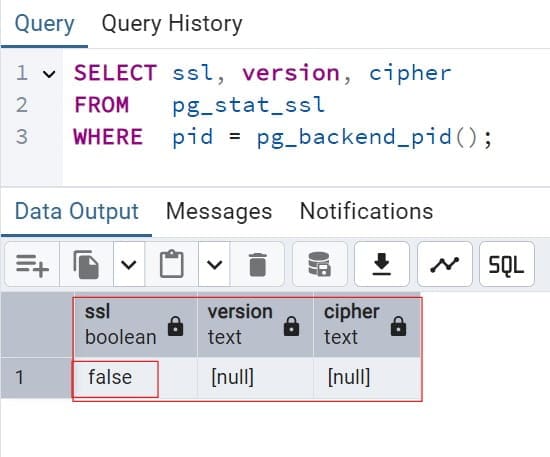
This reads the pg_stat_ssl view for your own session. If ssl shows t (true), your connection is encrypted. If it shows f, stop and fix the connection string before you do anything else.
Do not type passwords into scripts or shell history. Use a .pgpass file with restricted permissions, or better, Microsoft Entra ID tokens, which I cover later. If you see “could not connect,” read the fixes for could not connect to PostgreSQL server, and for login errors see password authentication failed.
Pro Tip: I add
sslmode=requireto every connection string I write, even in dev. A habit built in dev prevents an unencrypted connection in production.
Method 1: List Databases With psql Meta-Commands
psql is PostgreSQL’s command-line client. It has meta-commands, which start with a backslash and are handled by psql itself, not the server. The fastest way to list databases is \l.
bash\l
This prints a table with the database name, owner, encoding, collation, character type, and access privileges. \list does the same thing. The output is quick to read and works for any role that can connect.
For more detail, add a plus sign:
bash\l+
The + adds database size, default tablespace, and description. Size is useful for cost reviews. Note that \l+ may fail to show size for databases where your role lacks the CONNECT privilege, and it can be slow on servers with many large databases because it calculates sizes.
You can also filter by pattern:
bash\l sales*
This lists only databases whose names start with sales. Patterns help in multi-tenant systems where each customer has a database named tenant_<id>.
To switch databases after you find the right one, use \c:
bash\c salesdb
This disconnects from the current database and connects to salesdb. See how to create a database in PostgreSQL if the one you want does not exist yet.
Meta-commands only work inside psql. Your application code, scripts, and tools like Python cannot use them, so use SQL for those.
Pro Tip: I teach new team members
\l+and\dn+in their first week. Those two commands answer most “what is on this server?” questions in under a minute.
Method 2: List Databases With a SQL Query
A SQL query works in any client, including pgAdmin, DBeaver, Python, and CI scripts. It also lets you filter, sort, and format results. The simplest version reads the catalog directly:
SELECT datname
FROM   pg_database
WHERE  datistemplate = false
ORDER  BY datname;
After running the query above, I got the expected output shown in the screenshot below.
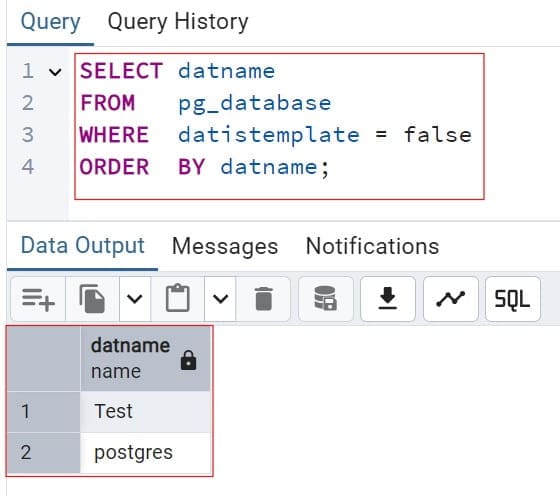
This returns only user databases. datname is the database name. datistemplate = false hides template0 and template1. ORDER BY sorts the names alphabetically.
A more useful audit query adds owner, encoding, and size:
SELECT d.datname                                  AS database_name,
       pg_get_userbyid(d.datdba)                  AS owner,
       pg_encoding_to_char(d.encoding)            AS encoding,
       d.datcollate                               AS collation,
       pg_size_pretty(pg_database_size(d.datname)) AS size,
       d.datallowconn                             AS allows_connections
FROM   pg_database AS d
WHERE  d.datistemplate = false
ORDER  BY pg_database_size(d.datname) DESC;
After running the query above, I got the expected output shown in the screenshot below.
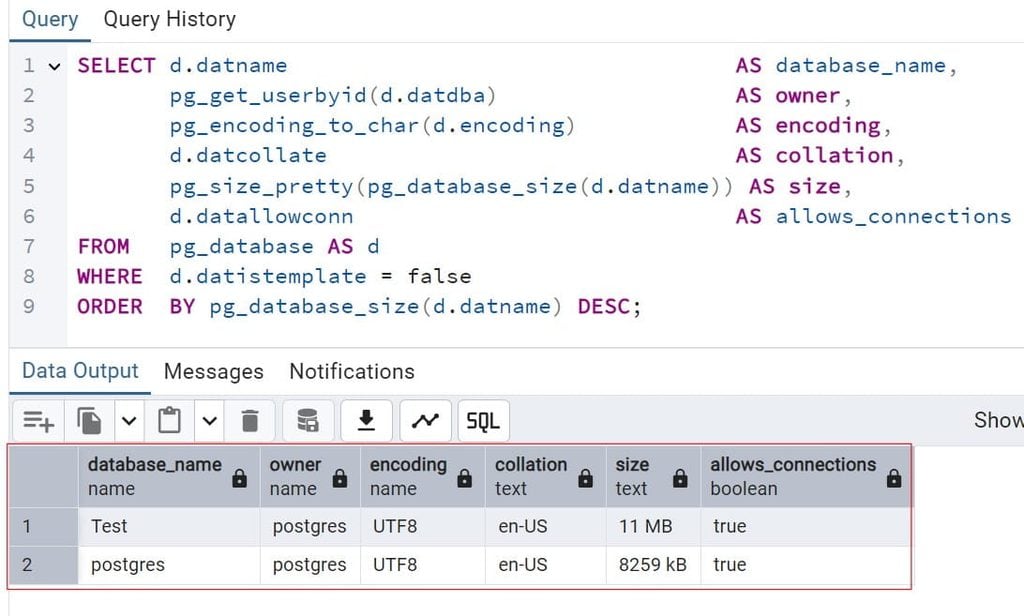
Here is what each part does:
pg_get_userbyid(d.datdba)converts the owner’s numeric ID into a role name.pg_encoding_to_char(d.encoding)shows the character encoding, such as UTF8.pg_database_size(d.datname)returns the size in bytes, andpg_size_prettyformats it as MB or GB.datallowconnshows whether the database accepts connections.
Sorting by size descending puts your biggest cost drivers at the top. On the startup’s server, this query exposed the forgotten backup copy in about two seconds.
Which databases can a role actually open?
Listing is not the same as access. A role can see a database name in pg_database but still fail to connect. Check access with a privilege function:
SELECT datname,
       has_database_privilege(current_user, datname, 'CONNECT') AS can_connect
FROM   pg_database
WHERE  datistemplate = false
ORDER  BY datname;
After running the query above, I got the expected output shown in the screenshot below.
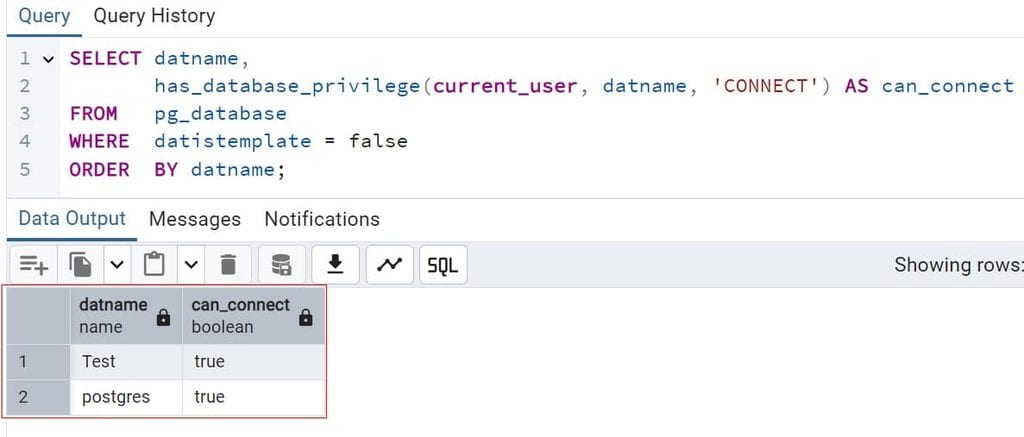
has_database_privilege checks whether the current role holds CONNECT on each database. This is handy when you test a new application role. To see which roles exist, use this guide to list users in PostgreSQL.
Pro Tip: I run the can_connect query as the application role after every deployment. It catches over-broad grants and missing grants in one pass.
Method 3: List Databases With the Azure CLI
For Azure Database for PostgreSQL Flexible Server, you can list databases without opening a database connection at all. The Azure CLI calls the Azure Resource Manager, which is Azure’s deployment and management layer. Sign in first with this Azure CLI login guide.
az postgres flexible-server db list \
  --resource-group <resource-group-name> \
  --server-name <server-name> \
  --output table
This command lists the databases on the server. --resource-group names the resource group that holds the server, and --server-name names the server. --output table prints a readable table. The advantage is that it works from a pipeline using a service principal or managed identity, with no database password.
The caller needs an Azure RBAC role with read access on the server resource. Azure RBAC assigns permissions through roles. Give a reporting identity the Reader role scoped to one resource group, not the whole subscription. If you want a refresher, read what RBAC is.
The trade-off: the CLI shows database names and basic properties, not owners, sizes, or privileges. For those, you still need SQL. I use the CLI for inventory scripts and SQL for deep audits.
To create the resource group that holds these servers, see how to create a resource group in Azure:
az group create \
  --name rg-pg-orders-prod \
  --location eastus \
  --tags environment=prod workload=orders owner=data-team
This creates a resource group named rg-pg-orders-prod in the East US region. The tags label the workload so cost reports can group it. Learn more about Azure tags to build a consistent scheme.
Pro Tip: I schedule the CLI inventory command weekly and diff the output. A new database name that nobody announced is often the first sign of shadow IT.
Use Microsoft Entra ID Instead of Passwords
Static passwords leak through config files, chat messages, and spreadsheets. Microsoft Entra ID authentication lets users and apps sign in with short-lived tokens. A managed identity is an identity that Azure creates for a resource, so the app never stores a secret. Read what a managed identity in Azure is for the concept.
Get a token and connect with the CLI:
export PGPASSWORD=$(az account get-access-token \
  --resource-type oss-rdbms \
  --query accessToken \
  --output tsv)

psql "host=<server-name>.postgres.database.azure.com port=5432 dbname=postgres user=<entra-user-principal-name> sslmode=require" \
  -c "\l"
The first command requests an access token for Azure’s open-source database resource and stores it in PGPASSWORD for this shell session only. The token expires, typically within an hour, so a leaked token is far less risky than a leaked password. The -c "\l" flag runs one meta-command and exits, which suits scripts.
Your Entra user must be added as a database role on the server first. Test the connection with a non-admin account to confirm that least privilege works.
In Python, request the token at runtime and never hardcode credentials:
import psycopg
from azure.identity import DefaultAzureCredential

credential = DefaultAzureCredential()
token = credential.get_token("https://ossrdbms-aad.database.windows.net/.default").token

conn = psycopg.connect(
    host="<server-name>.postgres.database.azure.com",
    dbname="postgres",
    user="<managed-identity-name>",
    password=token,
    sslmode="require",
)

with conn, conn.cursor() as cur:
    cur.execute("SELECT datname FROM pg_database WHERE NOT datistemplate ORDER BY 1")
    for (name,) in cur.fetchall():
        print(name)
DefaultAzureCredential uses a managed identity in Azure and your developer sign-in on a laptop. The token acts as the password. The query lists user databases and prints each name. If you must keep any remaining secret, such as a third-party API key, store it in Azure Key Vault and follow these Azure Key Vault best practices.
Pro Tip: I disable password authentication on new production servers once the Entra admin is working. If a password path exists, someone will eventually use it.
Control Who Can See and Open Databases
Here is a point many people miss. In PostgreSQL, any role that can connect to the server can read pg_database, so database names are not secret. Do not put customer names, project codes, or sensitive terms in database names. Use neutral names, and keep the mapping in a protected document.
Access control happens at connection time. By default, PostgreSQL grants CONNECT on new databases to the PUBLIC pseudo-role, which means every role. Tighten that:
REVOKE CONNECT ON DATABASE ordersdb FROM PUBLIC;
GRANT  CONNECT ON DATABASE ordersdb TO app_orders_rw;
The first statement removes the default open access. The second grants access to one application role. Together, they apply least privilege. Create roles for apps, not superusers, and review this guide to create a user with a password for the syntax, then replace passwords with Entra roles on Azure.
Separate roles by purpose: one for migrations that can change schemas, one for the app with read and write, and one read-only role for reports. Organize objects with schemas as explained in this overview of the PostgreSQL schema.
For auditing, enable the pgaudit extension on Flexible Server through server parameters. It logs sensitive actions such as role changes and DDL statements. Send those logs to Azure Monitor and alert on unusual events. See what Azure Monitor does for setup ideas.
Pro Tip: I once found an app role that could connect to every database on a server because nobody had revoked PUBLIC. That ten-second query now lives in my security checklist.
Network Design for Safe Access
Where your connection comes from matters as much as who you are. For production, I prefer private access, which places the server inside an Azure virtual network with a delegated subnet. Learn the basics in what an Azure virtual network is. Traffic then stays on private IP addresses, and the server has no public endpoint.
The alternative is public access with firewall rules, which allow specific IP ranges. Never open the range 0.0.0.0 to 255.255.255.255. If you must use public access, allow only your office or build agent addresses, and require TLS. A network security group filters traffic on subnets, and this guide on what an NSG in Azure is explains how to restrict port 5432 to known sources. For other Azure services, a private endpoint is another way to reach resources privately.
Trade-offs matter. Private access is more secure but harder for developers, who then need a VPN or a jump host. Public access is easier but increases exposure. For self-managed servers, check the listen_addresses setting, since binding to all interfaces exposes the port.
Pro Tip: I give developers a small jump VM in the same virtual network, with Entra sign-in and no public database access. They keep their workflow, and the database stays private.
Deploy the Server With Bicep
Repeatable deployments reduce manual mistakes, such as a developer enabling public access in the portal at 5 p.m. This Bicep template creates a Flexible Server with private access and Entra authentication turned on.
param serverName string
param location string = resourceGroup().location
param administratorLogin string
@secure()
param administratorPassword string
param delegatedSubnetId string
param privateDnsZoneId string
param tenantId string = tenant().tenantId

resource pgServer 'Microsoft.DBforPostgreSQL/flexibleServers@2024-08-01' = {
  name: serverName
  location: location
  sku: {
    name: 'Standard_D2ds_v5'
    tier: 'GeneralPurpose'
  }
  properties: {
    version: '16'
    administratorLogin: administratorLogin
    administratorLoginPassword: administratorPassword
    storage: {
      storageSizeGB: 128
    }
    backup: {
      backupRetentionDays: 14
      geoRedundantBackup: 'Disabled'
    }
    network: {
      delegatedSubnetResourceId: delegatedSubnetId
      privateDnsZoneArmResourceId: privateDnsZoneId
    }
    authConfig: {
      activeDirectoryAuth: 'Enabled'
      passwordAuth: 'Enabled'
      tenantId: tenantId
    }
  }
}
This resource declaration creates a General Purpose Flexible Server on PostgreSQL 16 with 128 GB of storage and 14 days of backup retention, which enables point-in-time restore (PITR). PITR lets you restore the server to any moment inside the retention window. The network block attaches the server to a delegated subnet with a private DNS zone. authConfig turns on Entra authentication.
The admin password is marked @secure(), so Azure does not log it, and you should pass it at deploy time from Azure Key Vault, never from a file in source control. Values like SKU, storage, and retention belong in parameters, because dev can use Burstable with short retention, while production uses General Purpose with zone-redundant high availability and longer retention.
Dev servers can also be stopped when idle to save compute cost. Version and SKU names change over time, so confirm availability in your region.
Test restores. A backup that has never been restored is only an assumption. See this walkthrough to back up a PostgreSQL database logically with pg_dump, which is useful for moving one database.
Pro Tip: I restore a production backup into a scratch server every quarter and run the database list and row-count checks. It proves recovery works and costs very little.
Monitor, Clean Up, and Control Cost
Listing databases pays off when you act on the results. Build a short routine:
- List databases with sizes, and sort by size descending.
- Check activity with
pg_stat_databasefor the last reset time, commits, and connections. - Flag databases with no connections for 30 days.
- Confirm ownership with the application team before any deletion.
SELECT datname,
       numbackends AS active_connections,
       xact_commit + xact_rollback AS total_transactions,
       stats_reset
FROM   pg_stat_database
WHERE  datname IS NOT NULL
ORDER  BY total_transactions ASC;
After running the query above, I got the expected output shown in the screenshot below.
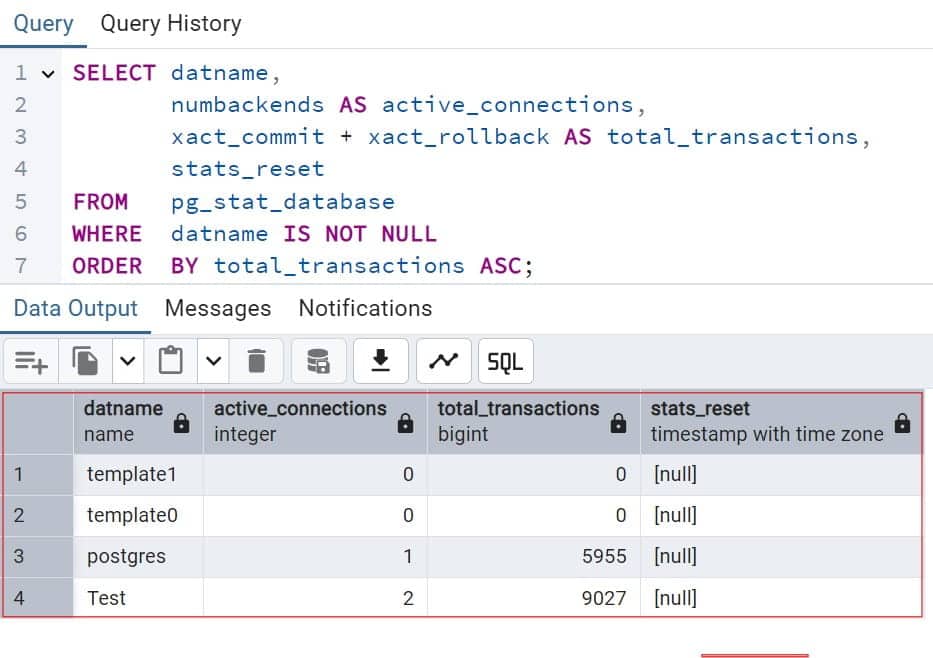
This shows which databases do the least work. Low activity suggests candidates for review. Statistics reset after some maintenance events, so treat the result as a hint, not proof.
Warning: Dropping a database deletes its data permanently. Take a backup, confirm the owner, and review how to drop a database in psql before you run DROP DATABASE. On Flexible Server, you cannot drop a database that has active connections without terminating them first.
On cost, remember that Flexible Server bills for compute and storage at the server level, not per database. Ten tiny databases cost almost the same as one, but one huge forgotten database grows storage. Set budgets with Azure budget alerts, and use Azure Advisor and Cost Analysis to find oversized servers. Also keep the database healthy with routine maintenance, since bloat inflates storage. Learn the difference between VACUUM and VACUUM FULL and how ANALYZE refreshes planner statistics.
Pro Tip: I add an
ownertag to every server and an owner entry to every database description. When cost reviews happen, I know who to ask within minutes.
Common Errors and Troubleshooting
“permission denied for database.” Your role lacks CONNECT. Ask the owner to grant it, or check the privilege with has_database_privilege.
\l shows nothing useful or \l+ shows no size. You may lack access to some databases. Run the SQL audit query as a role with broader read rights, such as pg_monitor.
“SSL connection is required.” The server enforces TLS. Add sslmode=require to your connection string.
“no pg_hba.conf entry.” On Azure, this usually means a firewall or network rule blocks your IP, or SSL is missing. Check the server’s networking settings. On self-managed servers, edit pg_hba.conf and reload.
“FATAL: password authentication failed.” The role, password, or token is wrong, or the token expired. Request a fresh Entra token. See this fix for password authentication failed on self-managed servers.
Version-specific differences. Catalog columns change between releases. Check your version with this guide on how to check the PostgreSQL version before you reuse an old script.
Pro Tip: When a listing query behaves strangely, I check
SELECT version();first. A script written for one major version can fail quietly on another.
PostgreSQL Production Readiness Checklist
- Least-privilege roles: Revoke
CONNECTfrom PUBLIC, grant access per application role, and avoid superuser accounts for apps. - Encrypted connections: Require TLS with
sslmode=requireor stronger, and verify withpg_stat_ssl. - Private access: Use VNet integration or tightly scoped firewall rules, and never allow the entire internet range.
- Tested recovery: Set PITR retention to match your recovery needs, and restore into a scratch server on a schedule.
- Cost visibility: Tag servers, set budget alerts, and review database sizes monthly.
- Environment separation: Size dev, test, and production differently, and keep high availability and long retention for production only.
Frequently Asked Questions
How do I list all databases in PostgreSQL?
Open psql and run \l, or use \l+ to include sizes. In any SQL client, run SELECT datname FROM pg_database WHERE datistemplate = false;. Both read the pg_database catalog.
What is the difference between \l and \l+?
\l shows names, owners, encoding, collation, and privileges. \l+ adds size, tablespace, and description. The extra size calculation can be slow on servers with many large databases.
How do I list databases in Azure Database for PostgreSQL?
Use az postgres flexible-server db list with the resource group and server name, or connect with psql and run \l. The CLI needs an Azure RBAC role on the server, and psql needs a database role with CONNECT.
Why can I see a database but not connect to it?
Listing only reads catalog metadata that any connected role can see. Connecting requires the CONNECT privilege on that database. Ask the database owner to grant it to your role.
How do I find which database is using the most space?
Run a query with pg_size_pretty(pg_database_size(datname)) and sort by pg_database_size(datname) descending. Review the top results with the owning team before you clean anything up.
You learned three ways to list PostgreSQL databases with psql, SQL, and the Azure CLI, and how to read sizes, owners, and access rights safely on Azure Database for PostgreSQL. Keep connections encrypted, use Entra ID instead of stored passwords, and revoke default access so a database you can list is not a database everyone can open. I hope you found this article helpful.
You May Also Like
- What is PostgreSQL?
- PostgreSQL vs. SQL Server
- Azure SQL vs. PostgreSQL
- PostgreSQL data types explained
- PostgreSQL JSON vs. JSONB

Kumar Saurabh is a freelance software engineer who builds web and mobile apps with Next.js, React, Flutter and Python. From 2021 to 2024, Saurabh worked as an IT analyst and developer at TSInfo Technologies, writing technical articles on SQL and PostgreSQL. Saurabh writes the PostgreSQL, MySQL, MariaDB and MongoDB tutorials on DatabaseFAQs.com and holds a Master of Computer Applications (MCA) from Chandigarh University.