
To check if SQL Server is running, I trust one sqlcmd query over any service list, because a Running service doesn’t prove you can connect.
The surprise: SQL Server Browser was Stopped and Disabled, and sys.dm_server_services doesn’t list it at all.
Quick answer: run sc query MSSQLSERVER or Get-Service MSSQL* and look for RUNNING, then confirm a login with the sqlcmd query below.
Tested on SQL Server 2025 (17.0.1000.7) Standard Developer, Windows 11, PowerShell 5.1 and sqlcmd in VS Code.
Check SQL Server Service Status with Get-Service
Get-Service is the quickest check on Windows 10 and 11:
- Open VS Code, then Terminal > New Terminal.
- Save the script below as check-sql-services.ps1.
- Run
powershell -File check-sql-services.ps1.
Save this as check-sql-services.ps1 and run it in the VS Code terminal:
Get-Service MSSQL*, SQLSERVERAGENT, SQLAgent*, SQLBrowser |
    Select-Object Name, Status, StartType |
    Format-Table -AutoSize
PowerShell printed:
Name            Status StartType
----            ------ ---------
MSSQLSERVER    Running Automatic
SQLBrowser     Stopped  Disabled
SQLSERVERAGENT Stopped    Manual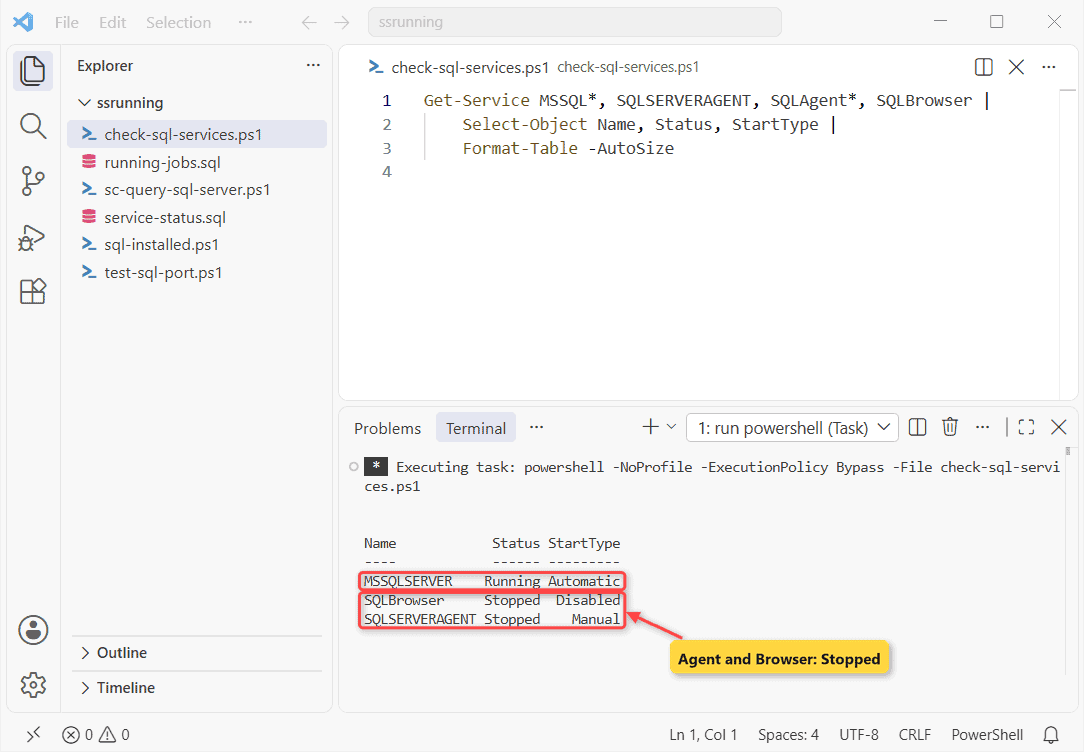
A named instance, like the one from my SQL Server Express install, shows up as MSSQL$SQLEXPRESS, so the wildcards catch it.
How to Check if SQL Server Is Running from the Command Line
In Command Prompt, sc query MSSQLSERVER is enough. In PowerShell, sc is an alias for Set-Content, so type sc.exe. Save these lines as sc-query-sql-server.ps1 and run them in the terminal:
sc.exe query MSSQLSERVER | Select-String "STATE"
sc.exe query SQLBrowser | Select-String "STATE"
sc.exe qc SQLBrowser | Select-String "START_TYPE"
Result:
        STATE              : 4  RUNNING
        STATE              : 1  STOPPED
        START_TYPE         : 4   DISABLED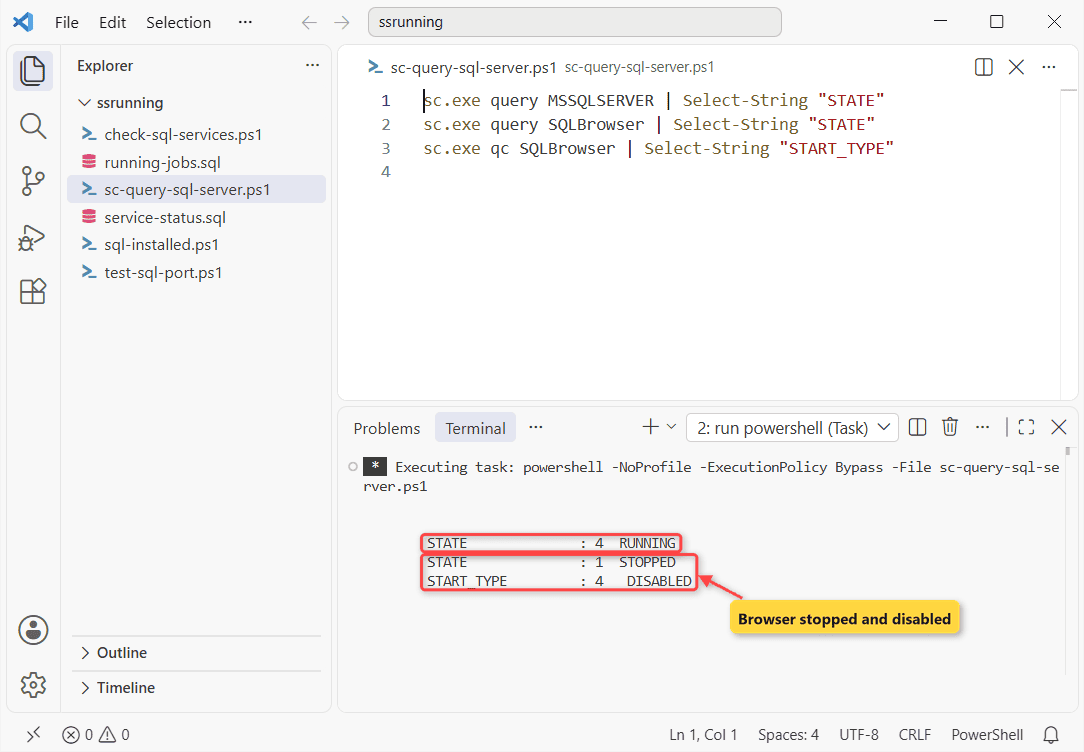
4 RUNNING vs 1 STOPPED, and DISABLED explains Browser.
Confirm the SQL Server Instance Is Running with sqlcmd
A service can say Running while logins fail. This query proves the SQL Server instance is running. Paste it into Command Prompt or the VS Code terminal:
sqlcmd -S tcp:localhost,1433 -E -C -Q "SET NOCOUNT ON; SELECT CAST(@@SERVERNAME AS varchar(11)) AS server_name, CAST(SERVERPROPERTY('ProductVersion') AS varchar(11)) AS version, CAST(net_transport AS varchar(5)) AS via FROM sys.dm_exec_connections WHERE session_id = @@SPID"
server_name version     via
----------- ----------- -----
SQLDEMO     17.0.1000.7 TCP
TCP means the 1433 listener answered. My SQL Server version check post decodes that build number.
Check if SQL Server Agent Is Running with T-SQL
sys.dm_server_services reports the SQL Server engine and Agent. Browser isn’t in it, so I ask Windows with the undocumented xp_servicecontrol. Save this as service-status.sql and run it with sqlcmd -i in the terminal:
SET NOCOUNT ON;
SELECT CAST(servicename AS varchar(31)) AS servicename,
       CAST(status_desc AS varchar(8)) AS status_desc,
       CAST(startup_type_desc AS varchar(9)) AS startup_type
FROM sys.dm_server_services;
CREATE TABLE #s (state varchar(10));
INSERT #s EXEC master.dbo.xp_servicecontrol N'QueryState', N'SQLBrowser';
SELECT 'SQLBrowser' AS service, state FROM #s;
sqlcmd returned:
servicename                     status_desc startup_type
------------------------------- ----------- ------------
SQL Server (MSSQLSERVER)        Running     Automatic
SQL Server Agent (MSSQLSERVER)  Stopped     Manual
service    state
---------- ----------
SQLBrowser Stopped.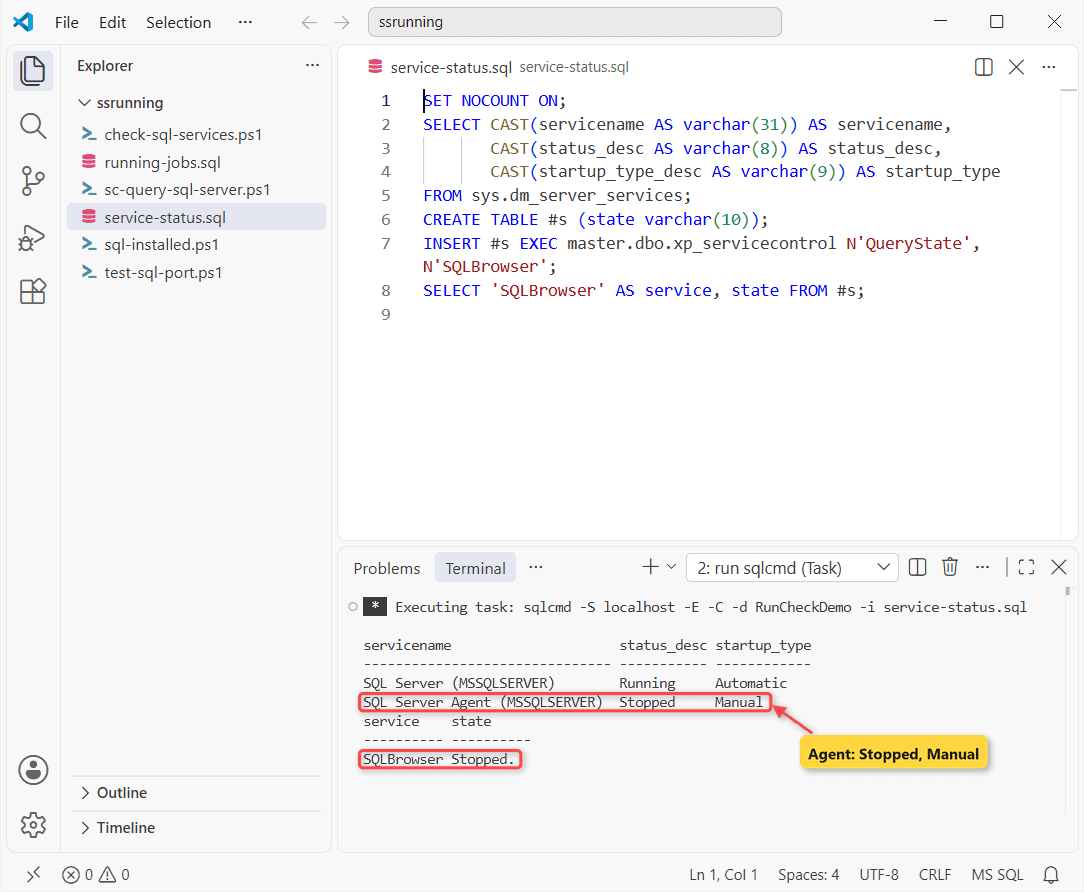
Manual means it stays down after a reboot; if it won’t start, see my SQL Server Agent won’t start walkthrough.
Check if an Agent Job Is Running in msdb
Running jobs sit in msdb.dbo.sysjobactivity for the latest Agent session. Save this as running-jobs.sql and run it in the terminal:
SET NOCOUNT ON;
SELECT COUNT(*) AS agent_sessions FROM msdb.dbo.syssessions;
SELECT CAST(j.name AS varchar(30)) AS job_name,
       a.start_execution_date
FROM msdb.dbo.sysjobactivity AS a
JOIN msdb.dbo.sysjobs AS j ON j.job_id = a.job_id
WHERE a.session_id = (SELECT MAX(session_id) FROM msdb.dbo.syssessions)
  AND a.start_execution_date IS NOT NULL
  AND a.stop_execution_date IS NULL;
What came back:
agent_sessions
--------------
             0
job_name                       start_execution_date
------------------------------ -----------------------
agent_sessions is 0: Agent never started here, so no job can run. With Agent up, each row is a running job.
How Do You Check if SQL Server Is Installed or Not?
Every engine instance is listed under one registry key. Save this as sql-installed.ps1 and run it in the terminal:
$key = 'HKLM:\SOFTWARE\Microsoft\Microsoft SQL Server\Instance Names\SQL'
if (Test-Path $key) { Get-ItemProperty $key | Select-Object * -ExcludeProperty PS* }
else { 'No SQL Server Database Engine instance on this PC' }
On my PC:
MSSQLSERVER
-----------
MSSQL17.MSSQLSERVER
MSSQL17 means SQL Server 2025. In the GUI, SQLServerManager17.msc > SQL Server Services shows a green triangle for running and a red square for stopped. You can also check the SQL Server edition.
Check if SQL Server Is Running on a Remote Computer
Test the port first. Save this as test-sql-port.ps1 and run it in the terminal (swap in your server name):
Test-NetConnection localhost -Port 1433 |
    Select-Object ComputerName, RemotePort, TcpTestSucceeded
Test-NetConnection localhost -Port 1435 -WarningAction SilentlyContinue |
    Select-Object ComputerName, RemotePort, TcpTestSucceeded
Test-NetConnection printed:
ComputerName RemotePort TcpTestSucceeded
------------ ---------- ----------------
localhost          1433             True
localhost          1435            False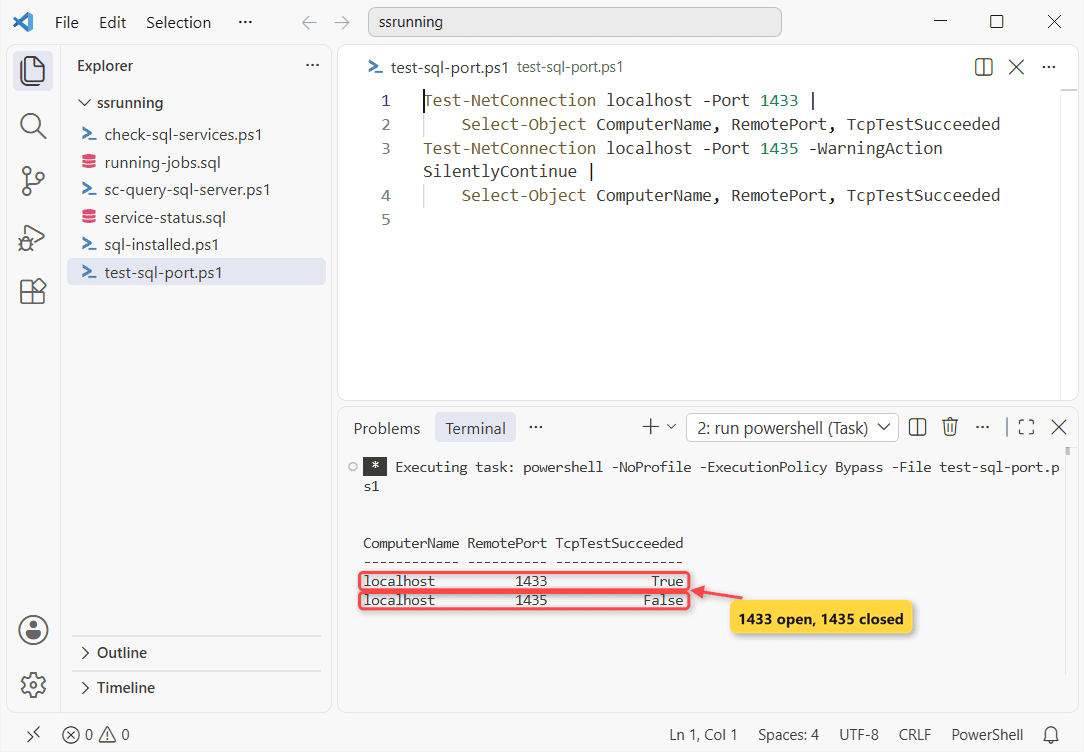
The closed port made the script take about 10 seconds. Other port? See my SQL Server port tutorial.
Ubuntu: Check SQL Server Status with systemctl
Not tested here (no Linux). On Ubuntu 24.04, run this in the terminal and look for active (running):
systemctl status mssql-server --no-pagerWhere the Answer Flips: Running vs Reachable
SQL Server can show Running and still refuse you:
| Method | Proves | My result |
|---|---|---|
| Get-Service / sc.exe | Service state | Running |
| sys.dm_server_services | Engine + Agent | Agent Stopped |
| sqlcmd | A login works | 17.0.1000.7, TCP |
| Test-NetConnection | Port open | 1433 True |
A made-up instance (localhost\NOPE) gave me Error Locating Server/Instance Specified, then the generic network-related error a stopped service also ends with.
My rule of thumb: sc.exe in scripts, sqlcmd for proof. Stuck on that error? Try could not open a connection to SQL Server.
Related on other engines and tools:
- Read the SQL Server error log
- Install SSMS 21
- Restart the PostgreSQL service
- Check Oracle database status
Questions About Checking SQL Server Status
Does net start show whether SQL Server is running?
Yes. net start lists only started services, so if SQL Server (MSSQLSERVER) is missing from it, the engine is stopped.
Does SQL Server Browser need to be running?
Only for named instances on dynamic ports. It answers on UDP 1434; a default instance on 1433 doesn’t need it.
Can I check SQL Server status without admin rights?
Yes. Get-Service and sc query worked in my non-elevated session; starting a service needs admin. sys.dm_server_services needs VIEW SERVER SECURITY STATE on SQL Server 2022+.

Shivam Dogra is a cloud database developer and Team Lead at TSInfo Technologies, where he has worked since June 2021. He writes the SQL Server and Oracle tutorials on DatabaseFAQs.com, covering queries, joins, stored procedures, triggers and permissions. Shivam holds a Master of Computer Applications (MCA) from Chandigarh University.