
You’re about to patch a server, file a support ticket, or try a newer T-SQL function, and the first question is always the same: which build is this?
Quick answer: to check SQL Server version, run SELECT @@VERSION; for the full banner, or SELECT SERVERPROPERTY('ProductVersion'); for just the number. Major version 17 means SQL Server 2025.
SELECT @@VERSION;
SELECT SERVERPROPERTY('ProductVersion') AS ProductVersion;What You Need Before You Start
Tested on SQL Server 2025 (17.0.1000.7) Standard Developer edition, default instance, Windows authentication, with sqlcmd in the VS Code terminal. You’ll see each query’s real output under it.
Any login can read @@VERSION and SERVERPROPERTY. Reading the error log needs securityadmin, VIEW ANY ERROR LOG or VIEW SERVER STATE. For the compatibility level step, we’ll use one empty database (here’s how to create a database in SQL Server):
CREATE DATABASE VersionDemo;Step 1: Run SELECT @@VERSION and Read Each Line
This is the query you’ll see everywhere. It returns one nvarchar string; -y 0 stops sqlcmd padding it:
SET NOCOUNT ON;
SELECT @@VERSION AS sql_server_version;
sqlcmd printed:
Microsoft SQL Server 2025 (RTM) - 17.0.1000.7 (X64)
	Oct 21 2025 12:05:57
	Copyright (C) 2025 Microsoft Corporation
	Standard Developer Edition (64-bit) on Windows 10 Enterprise 10.0 <X64> (Build 26200: ) (Hypervisor)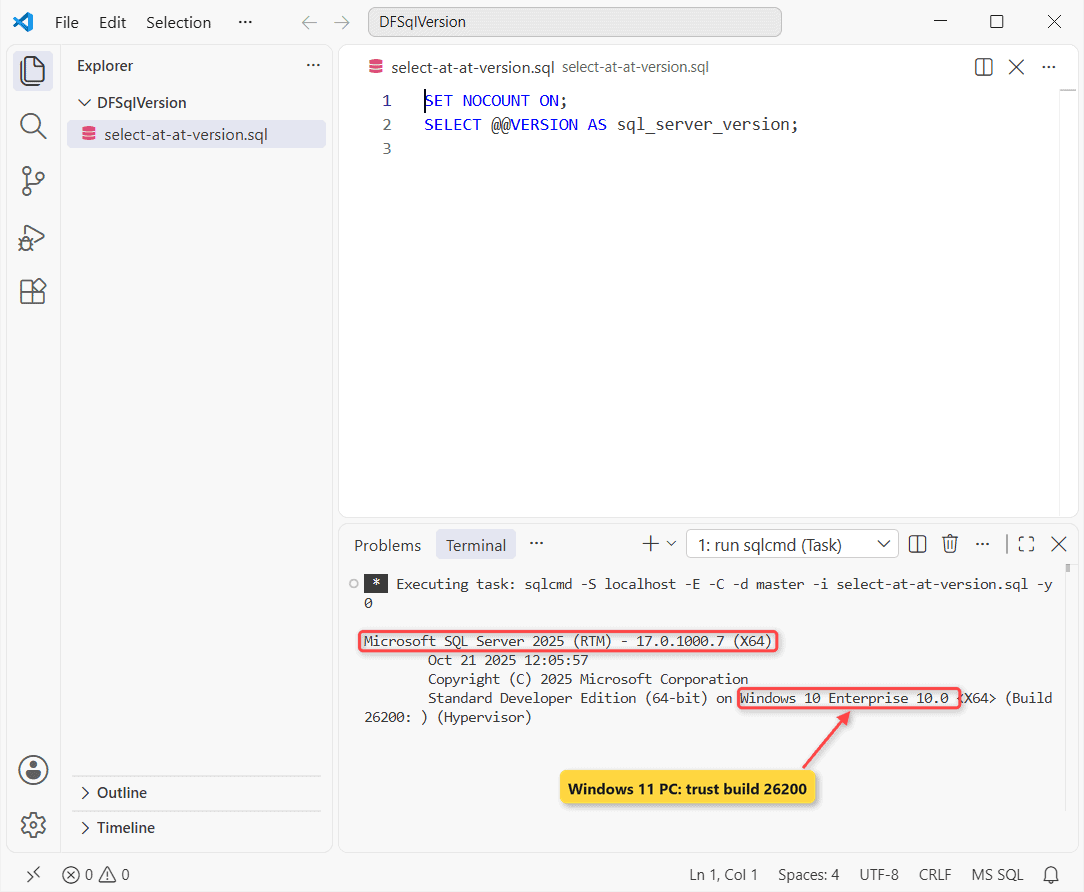
Read it line by line:
- SQL Server 2025 (RTM) – 17.0.1000.7 (X64): release, product level (RTM, no CU tag) and build.
- Oct 21 2025: when Microsoft compiled the build, not when you installed it.
- Copyright: skip it.
- Standard Developer Edition (64-bit) on Windows 10 Enterprise: edition, then the OS.
My PC runs Windows 11, yet the last line says Windows 10. Microsoft Learn shows the same on a Windows 11 VM, so you should trust the build number (26200), not the Windows name.
The same SELECT works in SSMS, which is free to download. @@VERSION skips the machine name; @@SERVERNAME shows it, so keep that out of your screenshots.
Step 2: Get Clean Values With SERVERPROPERTY
Parsing that banner in a script is fragile. SERVERPROPERTY gives you one value per property, as sql_variant, so a CAST to varchar keeps the grid narrow:
SET NOCOUNT ON;
SELECT p.name AS property,
       CAST(SERVERPROPERTY(p.name) AS varchar(36)) AS value
FROM (VALUES ('ProductVersion'), ('ProductMajorVersion'),
             ('ProductLevel'), ('ProductUpdateLevel'),
             ('ProductUpdateReference'), ('Edition'),
             ('EngineEdition')) AS p(name);
Output:
property               value
---------------------- ------------------------------------
ProductVersion         17.0.1000.7
ProductMajorVersion    17
ProductLevel           RTM
ProductUpdateLevel     NULL
ProductUpdateReference NULL
Edition                Standard Developer Edition (64-bit)
EngineEdition          2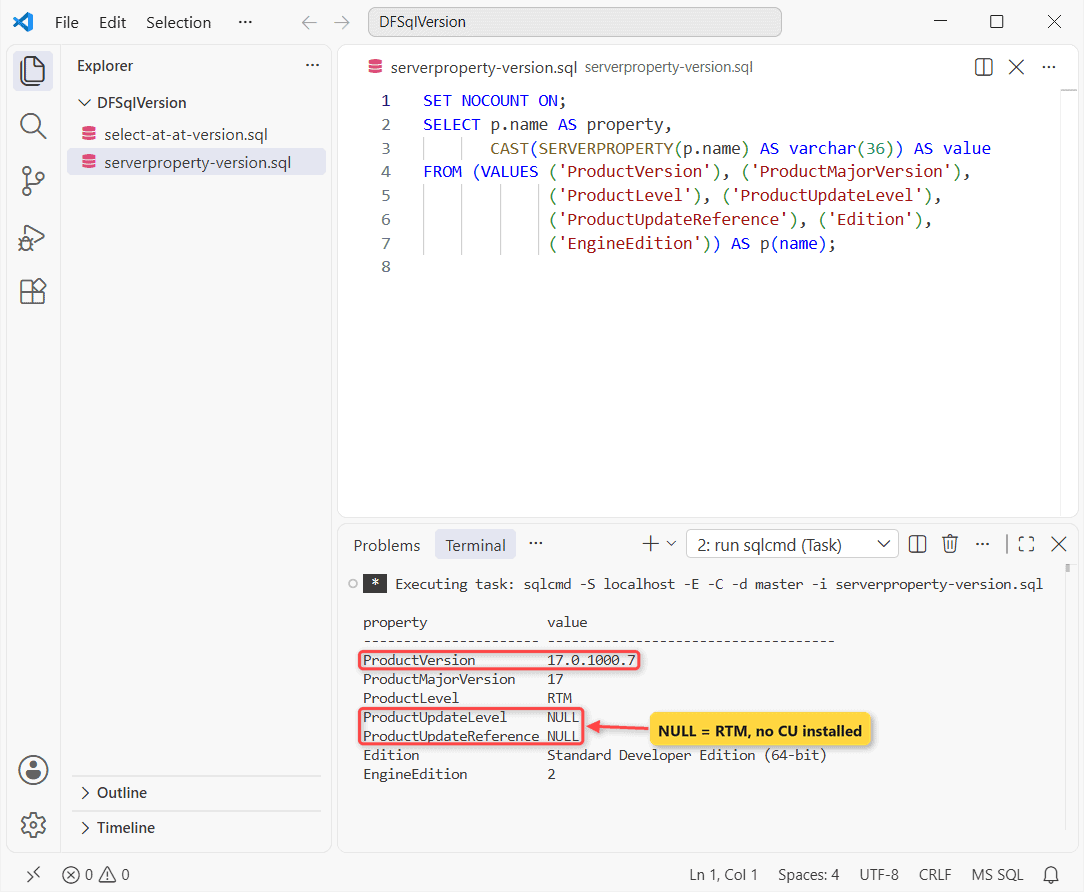
Check your work: ProductVersion (17.0.1000.7) should match line 1 of @@VERSION. On my server it does.
ProductUpdateLevel is NULL because this is a fresh RTM build. After a cumulative update it returns CUn, and ProductUpdateReference returns that update’s KB article.
EngineEdition 2 means Standard, which covers the new Standard Developer edition. 3 is Enterprise (also Enterprise Developer and Evaluation) and 4 is Express, which is what an Express installation reports.
Step 3: Turn the Major Version Number Into a Release Name
The first number before the dot is the major version. PARSENAME splits a dotted string, so PARSENAME(@v, 4) pulls it out on any version:
SET NOCOUNT ON;
DECLARE @v varchar(20) = CAST(SERVERPROPERTY('ProductVersion') AS varchar(20));
SELECT CASE CAST(PARSENAME(@v, 4) AS int)
         WHEN 17 THEN 'SQL Server 2025'
         WHEN 16 THEN 'SQL Server 2022'
         WHEN 15 THEN 'SQL Server 2019'
         WHEN 14 THEN 'SQL Server 2017'
         WHEN 13 THEN 'SQL Server 2016'
         ELSE 'Older than SQL Server 2016'
       END AS release_name,
       @v AS build;
Result:
release_name               build
-------------------------- --------------------
SQL Server 2025            17.0.1000.7
Here’s the SQL Server version number list, with each release’s default database compatibility level from Microsoft Learn:
| Major version | Release | Default compatibility level |
|---|---|---|
| 17.x | SQL Server 2025 | 170 |
| 16.x | SQL Server 2022 | 160 |
| 15.x | SQL Server 2019 | 150 |
| 14.x | SQL Server 2017 | 140 |
| 13.x | SQL Server 2016 | 130 |
| 12.x | SQL Server 2014 | 120 |
| 11.x | SQL Server 2012 | 110 |
Step 4: Check the Version From the Command Line (sqlcmd and PowerShell)
You don’t need SSMS open. From the VS Code terminal, -Q runs one query and exits, and -h -1 drops the header, so you get the bare number:
sqlcmd -S localhost -E -h -1 -Q "SET NOCOUNT ON; SELECT CAST(SERVERPROPERTY('ProductVersion') AS varchar(20));"Output:
17.0.1000.7If sqlcmd can’t connect at all, work through could not open a connection to SQL Server first.
PowerShell: Invoke-Sqlcmd and the registry
With the SqlServer module (22.4.5.1 here) in PowerShell 7, the same query looks like this:
Invoke-Sqlcmd -ServerInstance localhost -TrustServerCertificate `
  -Query "SELECT SERVERPROPERTY('ProductVersion') AS ProductVersion, SERVERPROPERTY('Edition') AS Edition"
Output:
ProductVersion Edition
-------------- -------
17.0.1000.7    Standard Developer Edition (64-bit)
Without -TrustServerCertificate, it refused my local server’s self-signed certificate (see the mistakes below). The registry also holds the version, with no login at all. This is the key I found on my PC for the default instance:
Get-ItemProperty 'HKLM:\SOFTWARE\Microsoft\Microsoft SQL Server\MSSQL17.MSSQLSERVER\Setup' |
  Format-List Version, PatchLevel, Edition
Output:
Version    : 17.0.1000.7
PatchLevel : 17.0.1000.7
Edition    : Standard Developer Edition
Step 5: Read the Version From the ERRORLOG With sp_readerrorlog
SQL Server writes the same banner at the top of every new error log. You pass sp_readerrorlog the log number, 1 (SQL Server) or 2 (Agent), and up to two search strings:
SET NOCOUNT ON;
CREATE TABLE #log (LogDate datetime, ProcessInfo nvarchar(20), Text nvarchar(4000));
INSERT #log EXEC sp_readerrorlog 0, 1, N'Microsoft SQL Server', N'Edition';
DECLARE @line nvarchar(4000);
SELECT TOP (1) @line = CONCAT(CONVERT(char(19), LogDate, 120), ' ', Text) FROM #log;
PRINT @line;
EXEC sp_readerrorlog 0, 2;   -- 2 = SQL Server Agent log
sqlcmd printed:
2026-10-27 15:09:50 Microsoft SQL Server 2025 (RTM) - 17.0.1000.7 (X64)
	Oct 21 2025 12:05:57
	Copyright (C) 2025 Microsoft Corporation
	Standard Developer Edition (64-bit) on Windows 10 Enterprise 10.0 <X64> (Build 26200: ) (Hypervisor)

HResult 0x55F4, Level 16, State 1
xp_readerrorlog() returned error 2, 'The system cannot find the file specified.'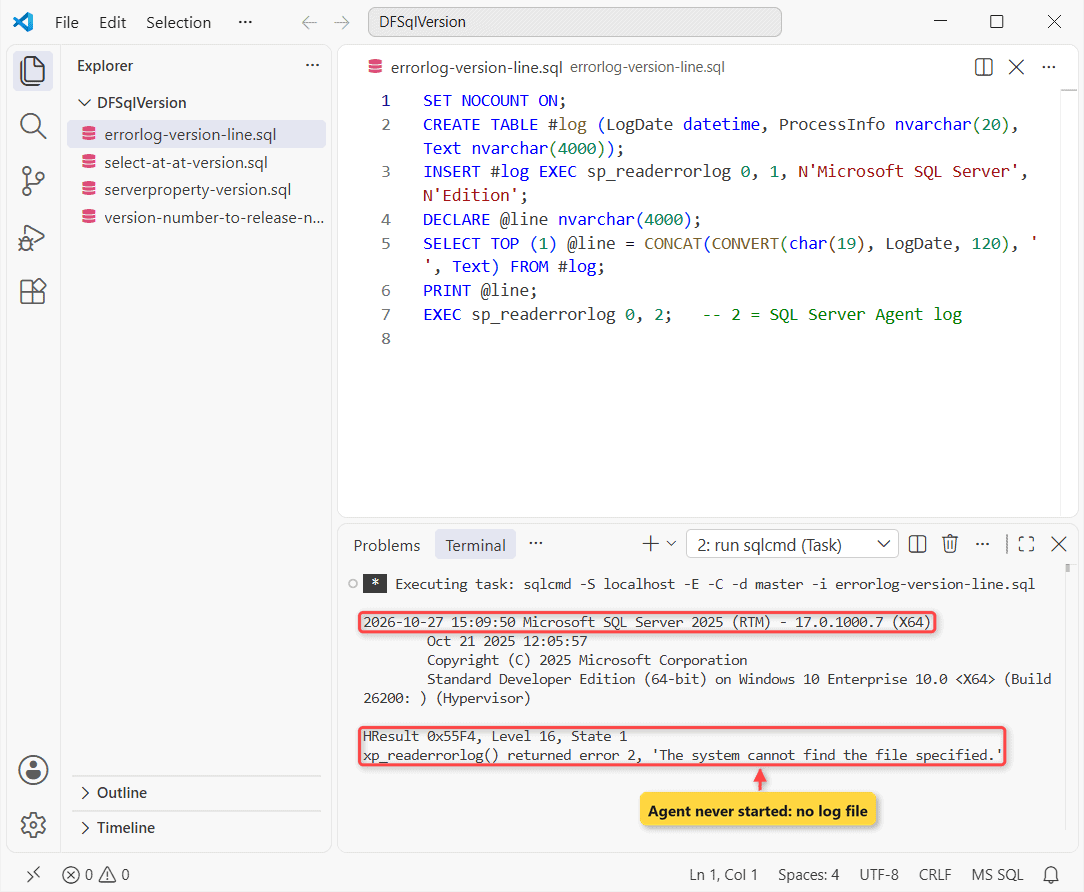
You also get the start time: this instance last started on 10/27/2026 at 3:09 PM.
My first try filtered on 'Microsoft SQL Server' alone and matched every backup message too (the data path contains those words). Adding 'Edition' fixed it.
The Agent read failed on purpose: Agent has never started on this PC, so its log doesn’t exist. The file itself is C:\Program Files\Microsoft SQL Server\MSSQL17.MSSQLSERVER\MSSQL\Log\ERRORLOG (more in how to view SQL Server error logs).
Older Procedures That Still Run: xp_msver and sp_server_info
You’ll meet these in old scripts, and both still run on SQL Server 2025 (-Y 40 trims the padding):
SET NOCOUNT ON;
EXEC xp_msver 'ProductVersion';
EXEC sp_server_info 2;
Output:
Index  Name                             Internal_Value Character_Value
------ -------------------------------- -------------- ----------------------------------------
     2 ProductVersion                          1114112 17.0.1000.7
attribute_id attribute_name                           attribute_value
------------ ---------------------------------------- ----------------------------------------
           2 DBMS_VER                                 Microsoft SQL Server 2025 - 17.0.1000.7
Internal_Value 1114112 is 17 × 65,536, the major version packed into the high bits. Neither tells you more than SERVERPROPERTY, so keep them only where a legacy script needs them.
Is Compatibility Level the Same as the SQL Server Version?
No. The version belongs to the instance; compatibility level belongs to each database, and a database restored from an older server keeps its old level. Set VersionDemo to 150 (SQL Server 2019 behavior):
SET NOCOUNT ON;
ALTER DATABASE VersionDemo SET COMPATIBILITY_LEVEL = 150;
GO
USE VersionDemo;
SELECT CAST(SERVERPROPERTY('ProductMajorVersion') AS varchar(5)) AS major,
       CAST(name AS varchar(12)) AS db, compatibility_level
FROM sys.databases WHERE name IN (N'master', N'VersionDemo');
BEGIN TRY
    EXEC (N'SELECT value FROM GENERATE_SERIES(1, 3);');
END TRY
BEGIN CATCH
    PRINT CONCAT('Msg ', ERROR_NUMBER(), ': ', ERROR_MESSAGE());
END CATCH;
Result:
Changed database context to 'VersionDemo'.
major db           compatibility_level
----- ------------ -------------------
17    master                       170
17    VersionDemo                  150
Msg 208: Invalid object name 'GENERATE_SERIES'.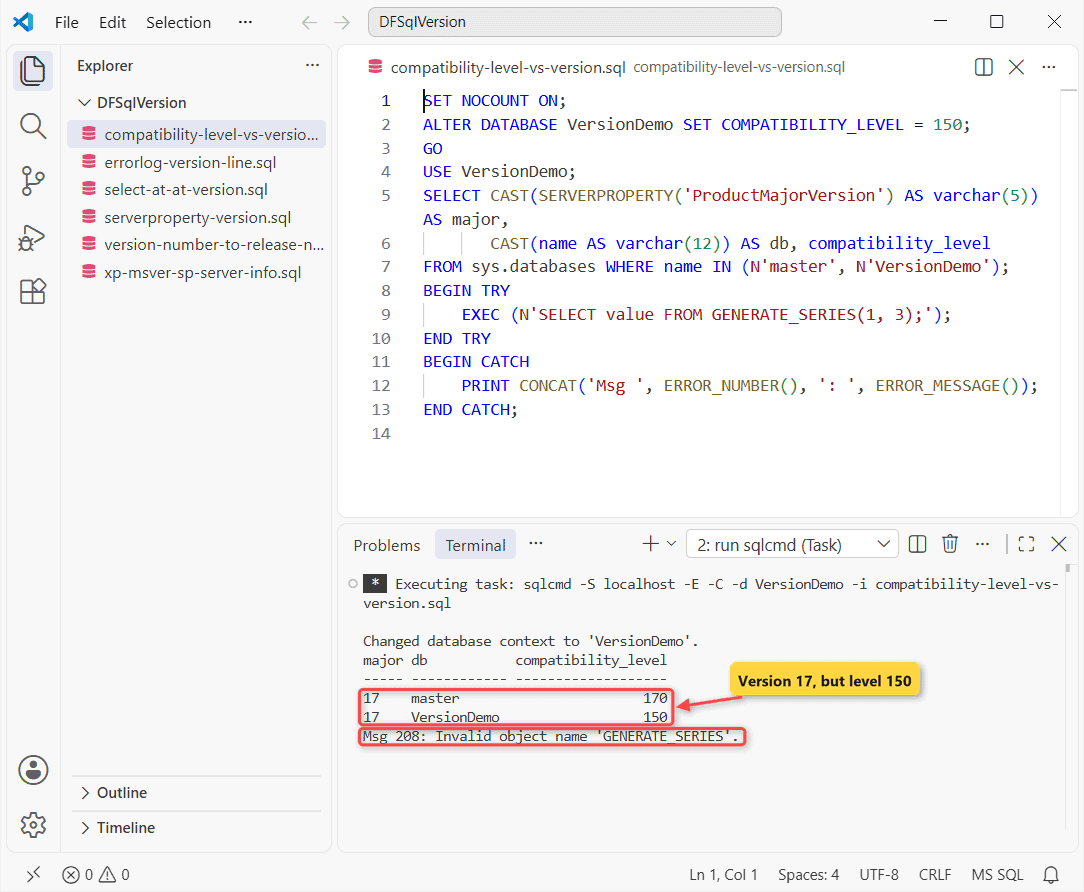
The engine is 17, but GENERATE_SERIES needs level 160 or higher, so it isn’t found. Raise the level (this needs ALTER permission on the database) and run it again:
SET NOCOUNT ON;
ALTER DATABASE VersionDemo SET COMPATIBILITY_LEVEL = 170;
GO
USE VersionDemo;
SELECT value FROM GENERATE_SERIES(1, 3);
Result:
Changed database context to 'VersionDemo'.
value
-----------
          1
          2
          3
Note: my first try had the ALTER and the SELECT in one batch, and the SELECT still failed with Msg 208. A new level takes effect after USE or a new login, hence the GO and USE VersionDemo.
To check every database at once, query name, compatibility_level from sys.databases, the same view you’d use to find a database name.
Check the Version in SSMS Without Writing a Query
Rather click? SSMS 21 shows it in two places:
- Connect in Object Explorer. The server node shows the version in parentheses, next to the login name.
- Right-click the server node and select Properties. The General page lists Product, Operating System and Version.
Common mistake: Help > About reports the version of SSMS itself, not the server. Need the tool first? Here’s how to install SSMS.
Common Mistakes to Avoid When Checking the SQL Server Version
You’ll hit these sooner or later; I hit each one building this page:
| Mistake | What you see | Fix |
|---|---|---|
| Trusting the Windows name in @@VERSION | Windows 10 on a Windows 11 PC | Read the build number |
| Expecting a CU on a fresh install | ProductUpdateLevel = NULL | NULL means RTM, no CU yet |
| Reading compatibility level as the version | 150 on a version 17 server | Check SERVERPROPERTY |
| Invoke-Sqlcmd without -TrustServerCertificate | certificate chain … not trusted | Add the switch or a trusted certificate |
| sp_readerrorlog 0, 2 when Agent never ran | HResult 0x55F4 | Start Agent or read log type 1 |
The full PowerShell error line was:
Invoke-Sqlcmd: A connection was successfully established with the server, but then an error occurred during the login process. (provider: SSL Provider, error: 0 - The certificate chain was issued by an authority that is not trusted.)Next Steps After the Version Check
Planning a cumulative update? Take a full backup first (see the types of backup in SQL Server).
Running PostgreSQL too? Here’s how to check the PostgreSQL version.
Other version checks we’ve written up:
- MariaDB: check the MariaDB version
- If you run Oracle: check the Oracle database version
- Connecting an app next? Get the SQL Server connection string
Frequently Asked Questions
How do I check the SQL Server version without logging in?
Open the ERRORLOG file in a text editor, or run the Installed SQL Server features discovery report from the Tools page of SQL Server Installation Center. It lists every local instance, per Microsoft’s version guide.
Why does Azure SQL Database report version 12?
Azure SQL Database version numbers aren’t comparable with SQL Server’s. Version 12 of Azure SQL Database is newer than version 16 of SQL Server.
How do I check the version of a named instance?
Connect with sqlcmd -S localhost\INSTANCENAME -E and run the same queries. SERVERPROPERTY('InstanceName') returns NULL on a default instance, per the SERVERPROPERTY reference.
Does a cumulative update change the compatibility level?
No. A CU changes the build number and ProductUpdateLevel; each database keeps its compatibility level until you run ALTER DATABASE … SET COMPATIBILITY_LEVEL.

Shivam Dogra is a cloud database developer and Team Lead at TSInfo Technologies, where he has worked since June 2021. He writes the SQL Server and Oracle tutorials on DatabaseFAQs.com, covering queries, joins, stored procedures, triggers and permissions. Shivam holds a Master of Computer Applications (MCA) from Chandigarh University.