
The remote procedure call failed. [0x800706be]SQL Server Configuration Manager shows that remote procedure call failed message in the SQL Server Services pane when its WMI call breaks. It’s Windows error 1726, and your databases are fine.
Quick answer: open the Configuration Manager snap-in that matches your newest instance (SQLServerManager17.msc for SQL Server 2025). Still failing? Recompile the WMI provider with mofcomp as an administrator.
Before You Fix the Remote Procedure Call Failed Error
Tested on SQL Server 2025 (17.0.1000.7) Developer edition, Windows 11, Windows PowerShell 5.1 in the VS Code terminal. My session has no admin rights, so every check is read-only.
Why SQL Server Configuration Manager Says the Remote Procedure Call Failed
Configuration Manager asks WMI, which asks the SQL Server provider registered in root\Microsoft\SqlServer\ComputerManagementNN, where NN is the major version number of the instance. That call died.
Side-by-side installs, like a SQL Server 2019 Express install next to 2025, cause most cases:
- An older snap-in, such as
SQLServerManager15.msc, opened on a 2025 box. - A provider unregistered by an uninstall, or a damaged WMI repository.
Step 1: Find the SQLServerManagerNN.msc That Matches Your Newest Instance
- Save the script below as
find-sqlservermanager-msc.ps1in a folder you open in VS Code. - In the VS Code terminal, run
powershell -NoProfile -ExecutionPolicy Bypass -File find-sqlservermanager-msc.ps1.
Here’s the script to save as find-sqlservermanager-msc.ps1 and run in the VS Code terminal:
Get-ChildItem C:\Windows\SysWOW64\SQLServerManager*.msc |
    ForEach-Object { $_.Name }
$root = 'HKLM:\SOFTWARE\Microsoft\Microsoft SQL Server'
$names = Get-ItemProperty "$root\Instance Names\SQL"
foreach ($n in $names.PSObject.Properties | Where-Object Name -notlike 'PS*') {
    $ver = (Get-ItemProperty "$root\$($n.Value)\Setup").Version
    '{0,-12} {1,-20} {2}' -f $n.Name, $n.Value, $ver
}
PowerShell printed:
SQLServerManager17.msc
MSSQLSERVER  MSSQL17.MSSQLSERVER  17.0.1000.7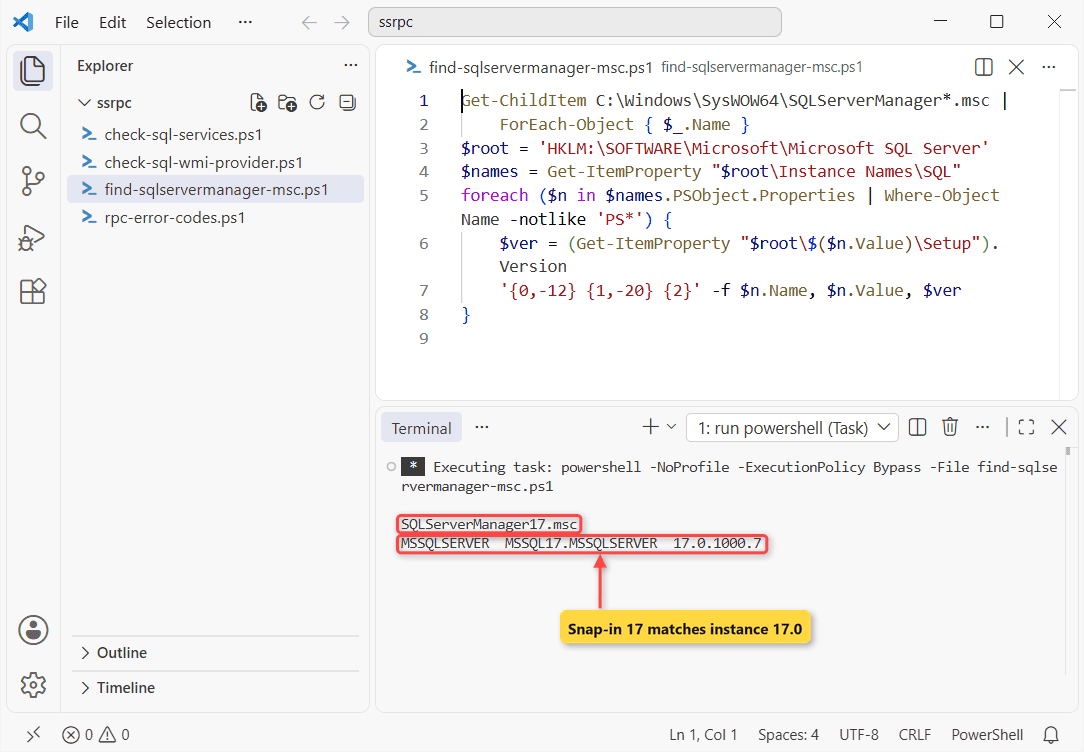
They match; if you see 15 and 17, open 17 with Win+R (2022 is 16, 2019 is 15). Unsure of a build? Check the SQL Server version.
Step 2: Check the SQL Server WMI Provider Namespace
Save this as check-sql-wmi-provider.ps1 and run it in the same terminal:
Get-CimInstance -Namespace root\Microsoft\SqlServer -ClassName __NAMESPACE |
    ForEach-Object { $_.Name }
foreach ($v in 17, 16) {
    $ns = "root\Microsoft\SqlServer\ComputerManagement$v"
    try {
        Get-CimInstance -Namespace $ns -ClassName SqlService -ErrorAction Stop |
            ForEach-Object { '{0}: {1} State={2} StartMode={3}' -f $v, $_.ServiceName, $_.State, $_.StartMode }
    } catch { "${v}: " + $_.Exception.Message + ' ' + $_.FullyQualifiedErrorId.Split(',')[0] }
}
Output:
ServerEvents
ComputerManagement17
17: MSSQLSERVER State=4 StartMode=2
17: SQLBrowser State=1 StartMode=4
17: SQLSERVERAGENT State=1 StartMode=3
16: Invalid namespace  HRESULT 0x8004100e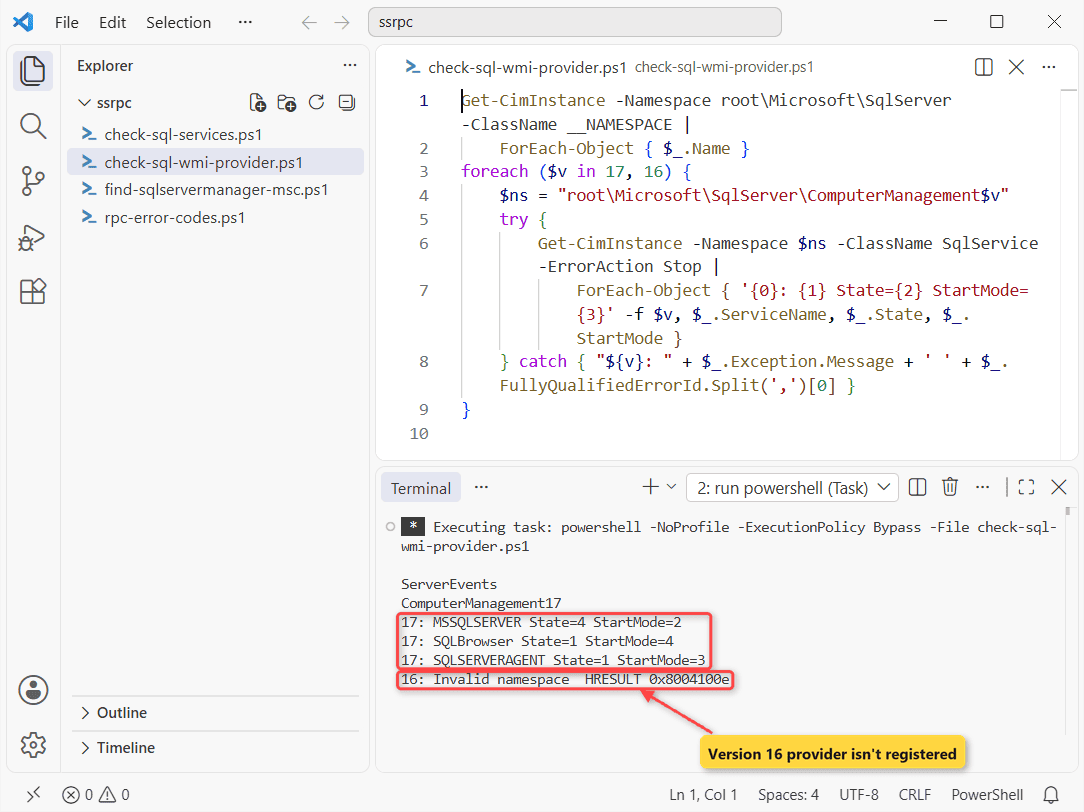
ComputerManagement17 returned all three services (State 4 = Running, 1 = Stopped). ComputerManagement16 failed with Invalid namespace, 0x8004100e. If your newest version fails like that, its provider is unregistered.
Step 3: Recompile the SQL Server WMI Provider With mofcomp
This is the risky fix, so I didn’t run it on this shared server. Open Start, type cmd, right-click Command Prompt and pick Run as administrator.
Run this in the Command Prompt you opened as administrator (SQL Server 2025; use 160 for 2022). Not run here:
mofcomp "%programfiles(x86)%\Microsoft SQL Server\170\Shared\sqlmgmprovider.mof"SQL Server 2019 and older use sqlmgmproviderxpsp2up.mof. My 170\Shared folder holds only sqlmgmprovider.mof, so the xpsp2up command fails on 2025. Restart Winmgmt afterward, or run a repair if the .mof file is missing.
Check SQL Server Services Without Configuration Manager
Save this as check-sql-services.ps1 and run it in the VS Code terminal:
Get-Service MSSQLSERVER, SQLSERVERAGENT, Winmgmt |
    Format-Table Name, Status, StartType -AutoSize
winmgmt /verifyrepository
Output:
Name            Status StartType
----            ------ ---------
MSSQLSERVER    Running Automatic
SQLSERVERAGENT Stopped    Manual
Winmgmt        Running Automatic

WMI repository verification failed
Error code:	0x80041003
Facility:	WMI
Description:	Access denied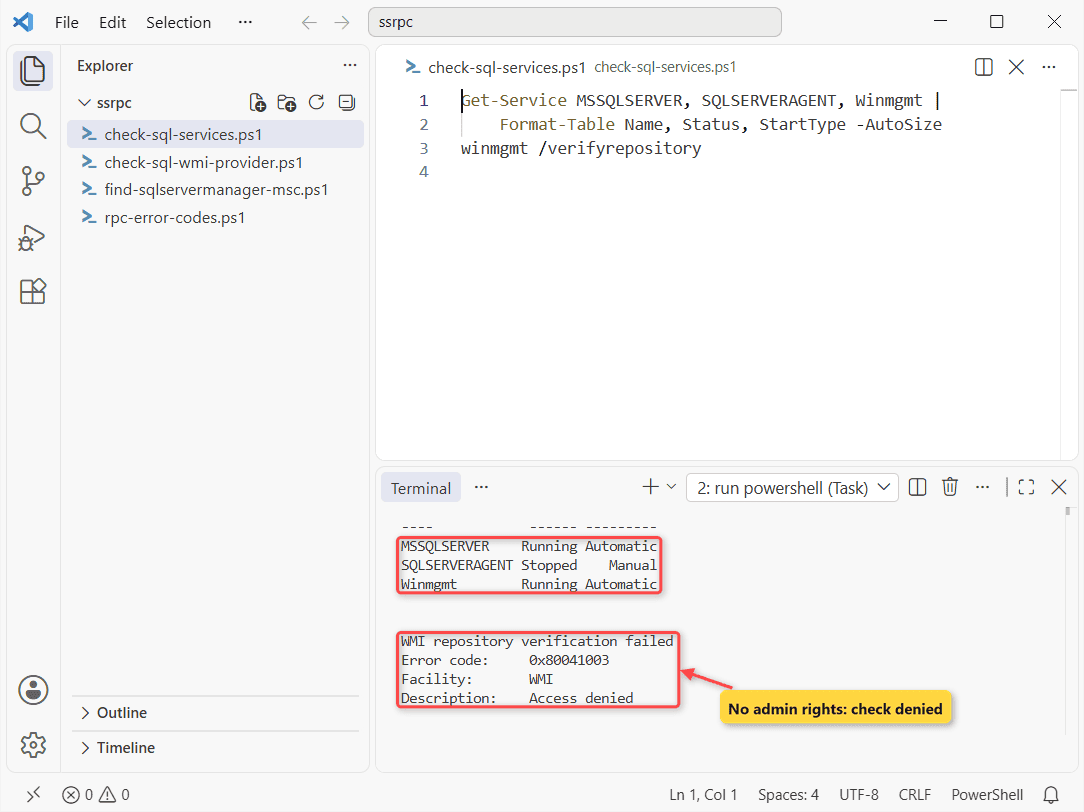
Get-Service skips WMI entirely, and the repository check needs admin rights: “WMI repository is consistent” rules it out. If Agent is the stopped one, see SQL Server Agent won’t start.
Confirm it’s fixed: reopen Configuration Manager and check that SQL Server Services lists each service.
The Remote Procedure Call Failed and Did Not Execute
Save this as rpc-error-codes.ps1 and run it in the terminal:
foreach ($c in 1726, 1727, 1818) {
    $text = (net helpmsg $c | Where-Object { $_ }) -join ''
    '{0} = 0x{1:X8}  {2}' -f $c, (0x80070000 -bor $c), $text
}
Output:
1726 = 0x800706BE  The remote procedure call failed.
1727 = 0x800706BF  The remote procedure call failed and did not execute.
1818 = 0x8007071A  The remote procedure call was cancelled.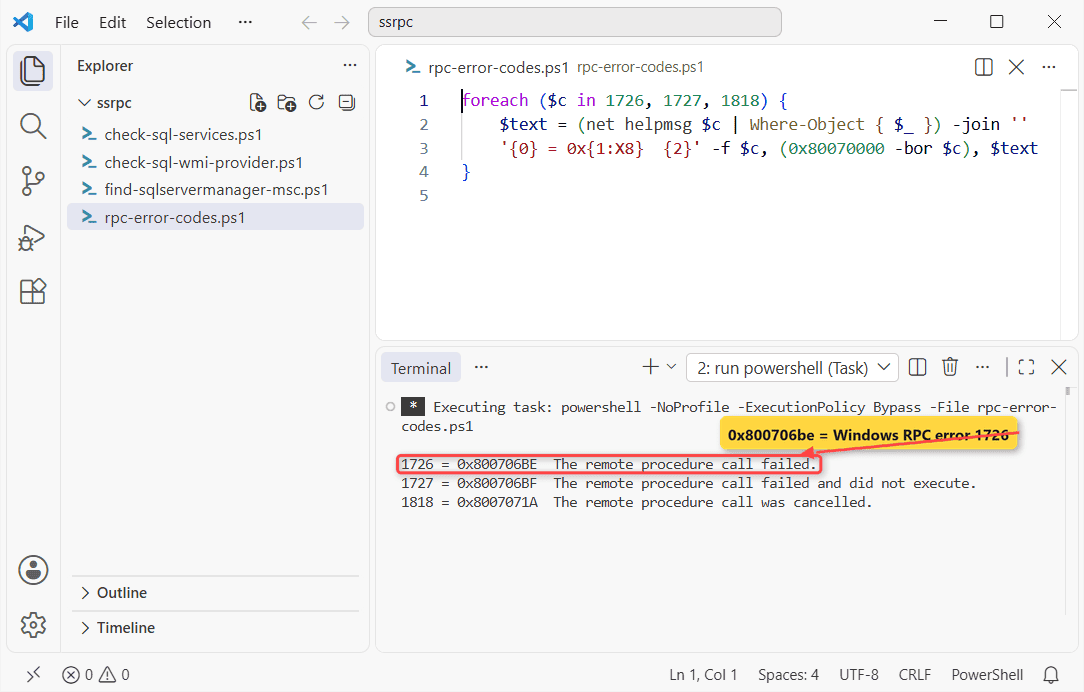
0x800706BF gets the same checks. 1818 means the caller stopped waiting. People also type 0x80076be, but the real code is 0x800706be, on Windows 10 and 11 alike.
| Code | Means | Fix |
|---|---|---|
| 0x800706BE / BF | WMI call failed | Newest .msc, then mofcomp |
| 0x8004100E | Invalid namespace | mofcomp |
| 0x80041003 | Access denied | Run as administrator |
Does Restarting SQL Server Fix the Remote Procedure Call Failed Error?
Rarely. My instance stayed Running, and the SQL Server error log looks normal. Restart Winmgmt after mofcomp instead.
If the Remote Procedure Call Still Fails
- If the namespace still fails after mofcomp, repair that instance.
- If you only need the SQL Server port, read it from T-SQL instead.
Next Step After SQL Server Configuration Manager Works
Once SQL Server Configuration Manager works, enable TCP/IP and fix could not open a connection to SQL Server. On PostgreSQL, the matching chore is to restart the Postgres service.
More SQL Server posts we’d read next:
- Install SQL Server Management Studio
- Build a SQL Server connection string
- Fix “cannot open server requested by the login”
SQL Server Configuration Manager RPC Error: Common Questions
How do I open SQL Server Configuration Manager in Windows 11?
It’s an MMC snap-in, so it may not appear as an app. Type SQLServerManager17.msc in Start; the SQL Server Configuration Manager page lists each version’s path.
Which SQLServerManager.msc file goes with each SQL Server version?
Below 15 (2019): 14 is 2017, 13 is 2016, 12 is 2014 and 11 is 2012. Each file sits in C:\Windows\SysWOW64.
Why does Configuration Manager say Cannot connect to WMI provider?
It ends with Invalid namespace [0x8004100e] or Invalid class [0x80041010]: the registration is gone. See Cannot connect to WMI provider for the .mof file per version.

Shivam Dogra is a cloud database developer and Team Lead at TSInfo Technologies, where he has worked since June 2021. He writes the SQL Server and Oracle tutorials on DatabaseFAQs.com, covering queries, joins, stored procedures, triggers and permissions. Shivam holds a Master of Computer Applications (MCA) from Chandigarh University.