
You connect to a PostgreSQL database by giving psql four details: the host, the port, a user name and the database name. On my Windows machine that’s psql -h localhost -p 5432 -U postgres -d dfq_pgconnect, and you’re in.
In this tutorial, I’ll set up one working login and reuse it every way you’ll need to connect to PostgreSQL database servers: psql options, a connection URI, environment variables, a password file, pgAdmin, Linux, Python and a remote host.
Here’s what we’re building: one psql command that lands on the right database and proves it with a quick query.
I tested the Windows commands below on PostgreSQL 18.6 and show their real output; the Linux steps follow the official docs.
Before You Start: What You Need to Connect to PostgreSQL
You need a running server and the psql client; the installer adds both. If you haven’t installed it yet, install PostgreSQL on Windows first. A connection is five values:
| Value | psql option | Env variable | Default | This tutorial |
|---|---|---|---|---|
| Host | -h | PGHOST | Unix socket (Linux/macOS), localhost (Windows) | localhost |
| Port | -p | PGPORT | 5432 | 5432 |
| User | -U | PGUSER | Your OS user name | postgres, alex_reader |
| Database | -d | PGDATABASE | Same as the user name | dfq_pgconnect |
| Password | -W prompts | PGPASSWORD (avoid) | Prompt or pgpass.conf | Prompt, pgpass.conf |
I created a database called dfq_pgconnect with five customers (US names, 2026 sign-up dates, USD values), so every connection has something to query:
CREATE DATABASE dfq_pgconnect TEMPLATE template0 ENCODING 'UTF8' LOCALE 'en-US';

-- then, connected to dfq_pgconnect:
CREATE TABLE customers (
    customer_id   integer GENERATED ALWAYS AS IDENTITY PRIMARY KEY,
    full_name     text NOT NULL,
    city          text NOT NULL,
    state         char(2) NOT NULL,
    signup_date   date NOT NULL,
    lifetime_usd  numeric(10,2) NOT NULL
);
INSERT INTO customers (full_name, city, state, signup_date, lifetime_usd) VALUES
    ('Megan Bowen',     'Seattle', 'WA', '2026-01-12', 1840.50),
    ('Alex Wilber',     'Austin',  'TX', '2026-02-03',  962.00),
    ('Adele Vance',     'Denver',  'CO', '2026-03-21', 2315.75),
    ('Lee Gu',          'Chicago', 'IL', '2026-05-08',  480.25),
    ('Diego Siciliani', 'Miami',   'FL', '2026-06-30', 1290.00);
LOCALE just gives the database US English sorting. Here’s how to create a table in PostgreSQL if that part’s new. I run psql with -f so each shot shows a script and its output; interactively, you’d type the same lines.
Step 1: Connect to a PostgreSQL Database with psql -h, -p, -U and -d
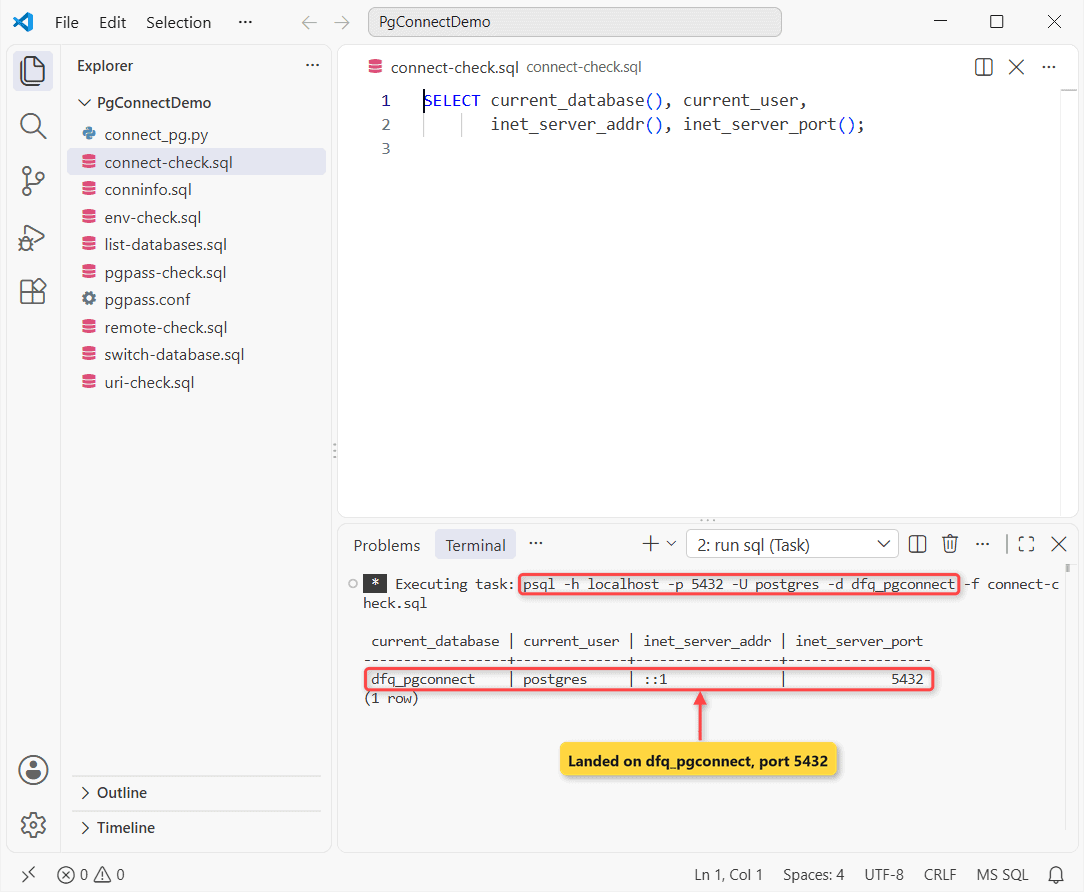
Goal: open a session on dfq_pgconnect as postgres and prove it. In Command Prompt, PowerShell or a terminal, run:
psql -h localhost -p 5432 -U postgres -d dfq_pgconnect -f connect-check.sqlHere’s connect-check.sql:
SELECT current_database(), current_user,
       inet_server_addr(), inet_server_port();
Output:
 current_database | current_user | inet_server_addr | inet_server_port
------------------+--------------+------------------+------------------
 dfq_pgconnect    | postgres     | ::1              |             5432
(1 row)
psql asks for the password when none is stored, then connects and runs the file. ::1 is the IPv6 loopback address that localhost resolved to.
Checkpoint: the row shows dfq_pgconnect, postgres and port 5432, exactly what the four options asked for.
Inside a session, \conninfo gives the full picture. Here’s the PostgreSQL 18 version of it:
psql -h localhost -p 5432 -U postgres -d dfq_pgconnect -f conninfo.sqlHere’s conninfo.sql:
\conninfoOutput:
        Connection Information
      Parameter       |     Value
----------------------+---------------
 Database             | dfq_pgconnect
 Client User          | postgres
 Host                 | localhost
 Host Address         | ::1
 Server Port          | 5432
 Options              |
 Protocol Version     | 3.0
 Password Used        | true
 GSSAPI Authenticated | false
 Backend PID          | 52456
 SSL Connection       | false
 Superuser            | on
 Hot Standby          | off
(13 rows)
Password Used is true, and SSL Connection is false because it’s a local connection.
-W forces a password prompt, and -w never prompts, which is what scheduled scripts need. Once you’re in, check the PostgreSQL version with SELECT version().
Windows: connect with the SQL Shell (psql) shortcut
The installer also adds SQL Shell (psql) to the Start menu. It prompts for each value with the default in brackets; press Enter to keep it, then type the password:
Server [localhost]:
Database [postgres]:
Port [5432]:
Username [postgres]:
Step 2: List Databases with \l and Switch Databases with \c
Goal: start in the default postgres database, find dfq_pgconnect, and move into it without quitting psql. First, the list:
psql -h localhost -U postgres -d postgres -f list-databases.sqlHere’s list-databases.sql:
\lx dfq_pgconnectOutput:
List of databases
-[ RECORD 1 ]-----+--------------
Name              | dfq_pgconnect
Owner             | postgres
Encoding          | UTF8
Locale Provider   | libc
Collate           | en-US
Ctype             | en-US
Locale            |
ICU Rules         |
Access privileges |
Plain \l lists every database in a wide table; I added x for the narrow layout and a name pattern. Now the switch, still starting from postgres:
psql -h localhost -U postgres -d postgres -f switch-database.sqlHere’s switch-database.sql:
\c dfq_pgconnect
SELECT current_database(), count(*) AS customers
FROM customers;
Output:
You are now connected to database "dfq_pgconnect" as user "postgres".
 current_database | customers
------------------+-----------
 dfq_pgconnect    |         5
(1 row)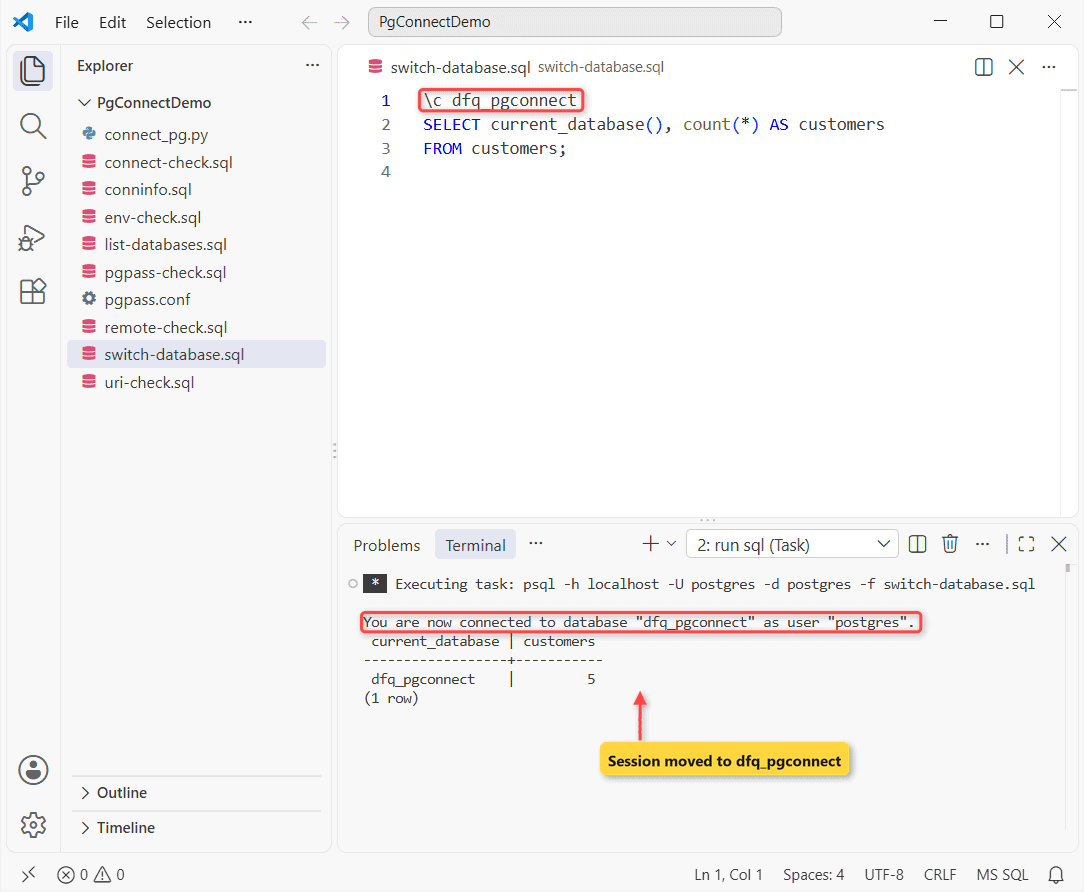
\c dbname [username] [host] [port] reconnects and reuses whatever you leave out, so \c - alex_reader keeps the database and switches the user.
Checkpoint: psql prints You are now connected to database “dfq_pgconnect” as user “postgres”, and the count returns 5 customers.
More options are in how to list databases in PostgreSQL, and \du lists roles (see list PostgreSQL users).
Step 3: Connect with a PostgreSQL Connection URI
Goal: pack every value into one string. Apps, cloud dashboards and .env files all hand you this format:
postgresql://[user[:password]@][host][:port][/dbname][?param=value&...]Every part is optional and postgres:// works too. I added application_name as a query parameter:
psql "postgresql://postgres@localhost:5432/dfq_pgconnect?application_name=sales_report" -f uri-check.sqlHere’s uri-check.sql:
SELECT current_database(), current_user, application_name
FROM pg_stat_activity
WHERE pid = pg_backend_pid();
Output:
 current_database | current_user | application_name
------------------+--------------+------------------
 dfq_pgconnect    | postgres     | sales_report
(1 row)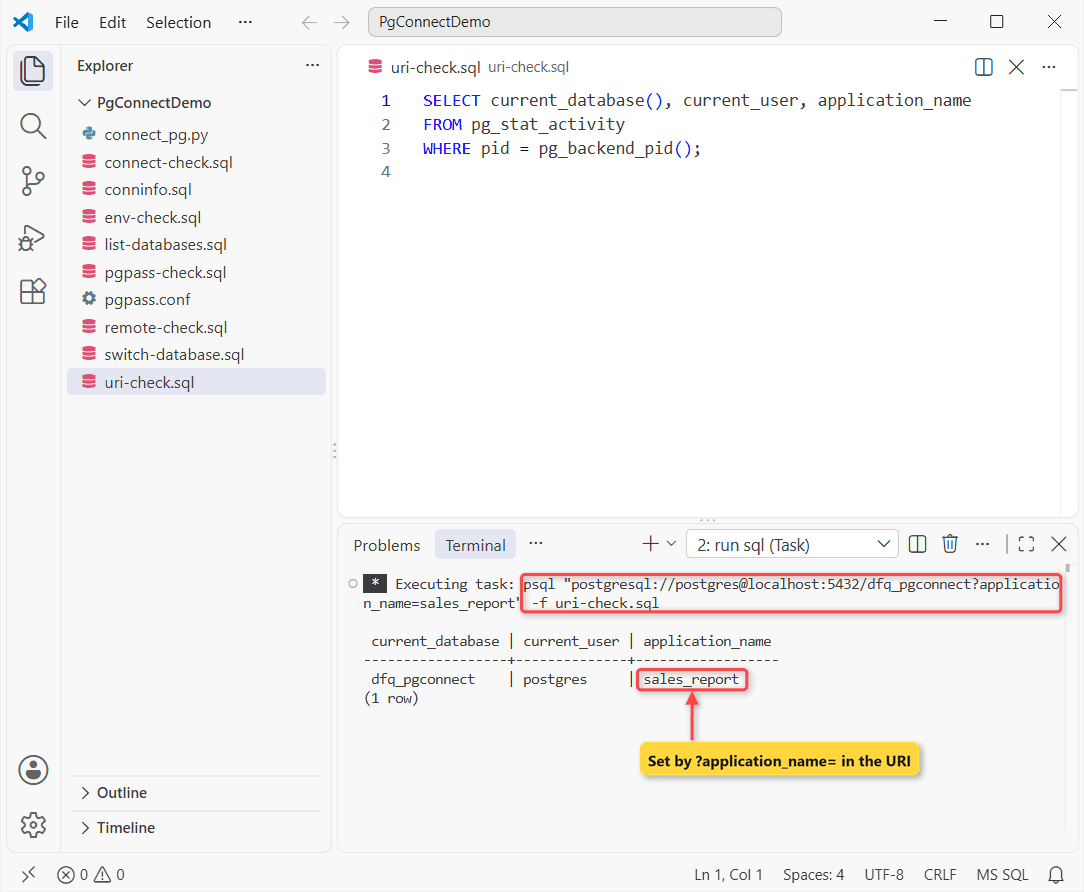
Checkpoint: application_name is sales_report, the value from the URI.
The keyword form works the same: psql "host=localhost port=5432 dbname=dfq_pgconnect user=postgres". Adding -f is also how you import a SQL file into PostgreSQL.
Important: keep passwords out of URIs, which land in shell history. If you must, percent-encode special characters (@ becomes %40).
Step 4: Set PGHOST, PGPORT, PGUSER and PGDATABASE Environment Variables
Goal: stop retyping options. psql reads these variables when a flag is missing, so a bare psql connects. Command Prompt syntax:
set PGHOST=localhost&& set PGPORT=5432&& set PGUSER=postgres&& set PGDATABASE=dfq_pgconnect&& psql -f env-check.sqlHere’s env-check.sql:
SELECT current_setting('port') AS port,
       current_user, current_database();
Output:
 port | current_user | current_database
------+--------------+------------------
 5432 | postgres     | dfq_pgconnect
(1 row)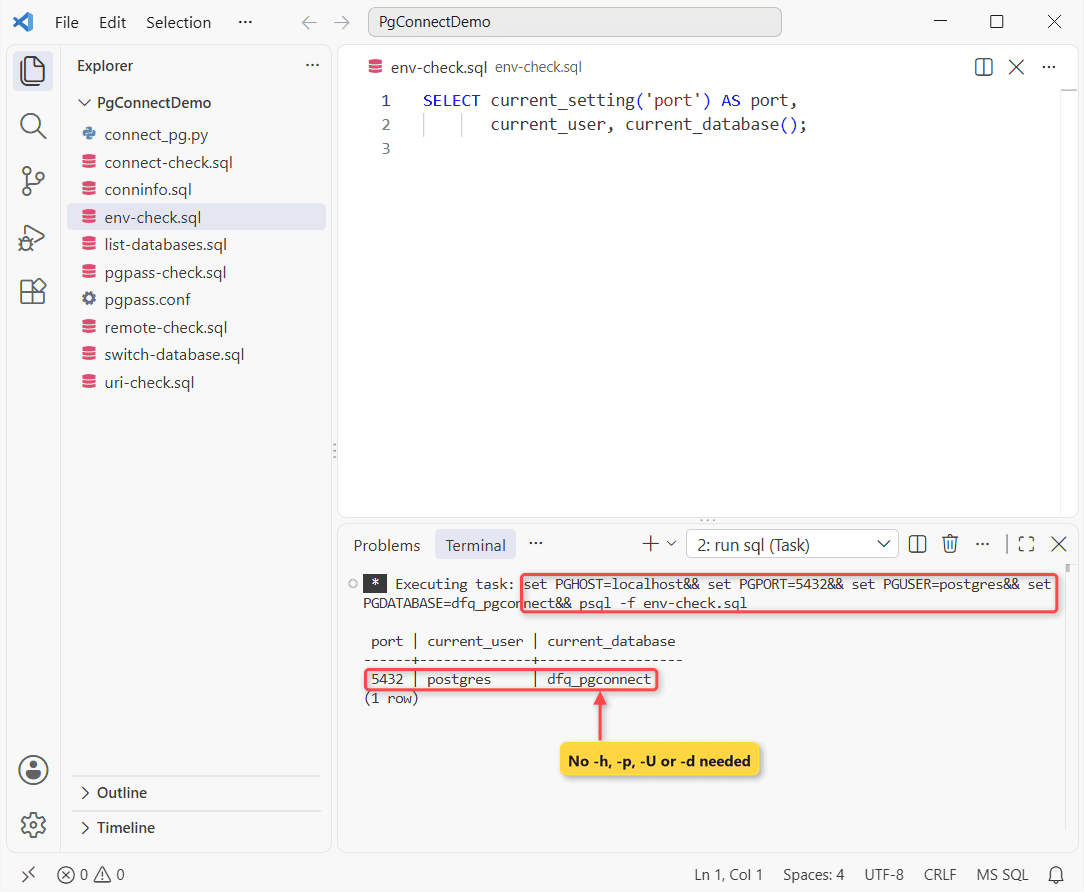
Checkpoint: no -h, -p, -U or -d, yet it landed on dfq_pgconnect as postgres. PowerShell and bash versions:
# PowerShell
$env:PGHOST = "localhost"; $env:PGPORT = "5432"
$env:PGUSER = "postgres"; $env:PGDATABASE = "dfq_pgconnect"

# bash / zsh
export PGHOST=localhost PGPORT=5432 PGUSER=postgres PGDATABASE=dfq_pgconnect
The docs advise against PGPASSWORD, since other users can sometimes read a process’s environment. Use the password file instead.
Step 5: Connect Without a Password Prompt Using pgpass.conf (.pgpass)
Goal: a read-only login for Alex Wilber that scripts can use with no prompt. I created the role first:
CREATE ROLE alex_reader LOGIN PASSWORD 'ChangeMe-Demo2026';
GRANT USAGE ON SCHEMA public TO alex_reader;
GRANT SELECT ON customers TO alex_reader;
That’s a throwaway local demo password (here’s how to set a user password in PostgreSQL). Each pgpass line is hostname:port:database:username:password, and * matches anything:
localhost:5432:dfq_pgconnect:alex_reader:ChangeMe-Demo2026libpq reads %APPDATA%\postgresql\pgpass.conf on Windows and ~/.pgpass on Linux (after chmod 0600 ~/.pgpass, or it’s ignored). I pointed PGPASSFILE at my copy:
set PGPASSFILE=C:\DatabaseFAQsDemo\PgConnectDemo\pgpass.conf&& psql -h localhost -U alex_reader -d dfq_pgconnect -f pgpass-check.sqlHere’s pgpass-check.sql:
SELECT current_user, current_database(), count(*) AS customers
FROM customers;
Output:
 current_user | current_database | customers
--------------+------------------+-----------
 alex_reader  | dfq_pgconnect    |         5
(1 row)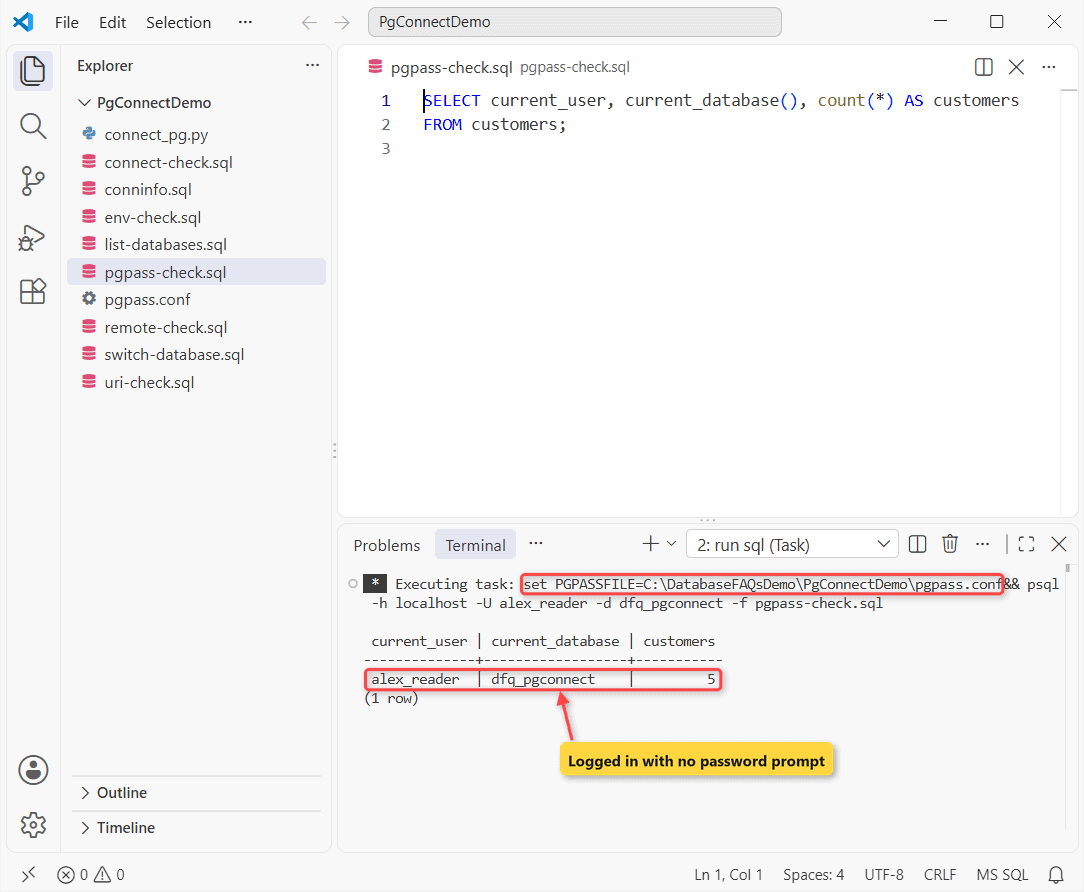
Checkpoint: no prompt, current_user is alex_reader, and it reads all 5 customers.
Pro Tip: a PGPASSWORD set in your session beats the file, so clear it when pgpass.conf seems ignored.
Step 6: Connect to PostgreSQL in pgAdmin 4
Goal: the same connection in the GUI, saved as a registered server:
- Open pgAdmin 4, right-click Servers in the tree, and choose Register > Server.
- On the General tab, type a Name such as Local PostgreSQL 18.
- On the Connection tab, set Host name/address to localhost and Port to 5432.
- Leave Maintenance database as postgres and set Username to postgres.
- Type the Password; turn on Save password? only on your own machine.
- For a cloud server, open the Parameters tab and set SSL mode to require.
- Click Save, then expand Databases > dfq_pgconnect and open the Query Tool.
The same pg_hba.conf and password rules apply as for psql.
How Do You Connect to a PostgreSQL Database on Linux?
On Linux you usually switch to the postgres OS user and start psql. These commands follow the PostgreSQL and distro docs; I ran the Windows equivalents, not a Linux box. 1. Check the service:
sudo systemctl status postgresql
sudo systemctl start postgresql

# RHEL/Rocky with the PostgreSQL.org packages: the unit is versioned
sudo systemctl status postgresql-18
2. Open psql as the postgres user. Either form works:
sudo -u postgres psql

# or open a shell as postgres first
sudo -i -u postgres
psql
No password is needed because Debian and Ubuntu set local socket connections to peer authentication: the kernel vouches for Linux user postgres. 3. Inside psql:
\l
\c dfq_pgconnect
\conninfo
SELECT version();
4. As any other Linux user, go over TCP so the password rule applies instead of peer:
psql -h localhost -p 5432 -U alex_reader -d dfq_pgconnectThe Windows twin of systemctl status is sc query postgresql-x64-18:
SERVICE_NAME: postgresql-x64-18
        TYPE               : 10  WIN32_OWN_PROCESS
        STATE              : 4  RUNNING
                                (STOPPABLE, PAUSABLE, ACCEPTS_SHUTDOWN)
If the server isn’t installed yet, here’s PostgreSQL installation on Linux step by step, and how to restart Postgres after config changes.
Test the Connection from Python with psycopg
psycopg 3 uses the same libpq as psql, so the URI, the variables and pgpass.conf all carry over. I installed it:
pip install "psycopg[binary]"That’s psycopg 3.3.6. Then I ran connect_pg.py:
python connect_pg.pyimport psycopg
# No password in the code: libpq reads PGPASSWORD or pgpass.conf
conninfo = "postgresql://postgres@localhost:5432/dfq_pgconnect"
top3 = """SELECT full_name, city, state FROM customers
ORDER BY lifetime_usd DESC LIMIT 3"""
with psycopg.connect(conninfo) as conn:
print("Connected, server version", conn.info.server_version)
with conn.cursor() as cur:
cur.execute(top3)
for name, city, state in cur.fetchall():
print(f"{name} - {city}, {state}")Output:
Connected, server version 180006
Adele Vance - Denver, CO
Megan Bowen - Seattle, WA
Diego Siciliani - Miami, FL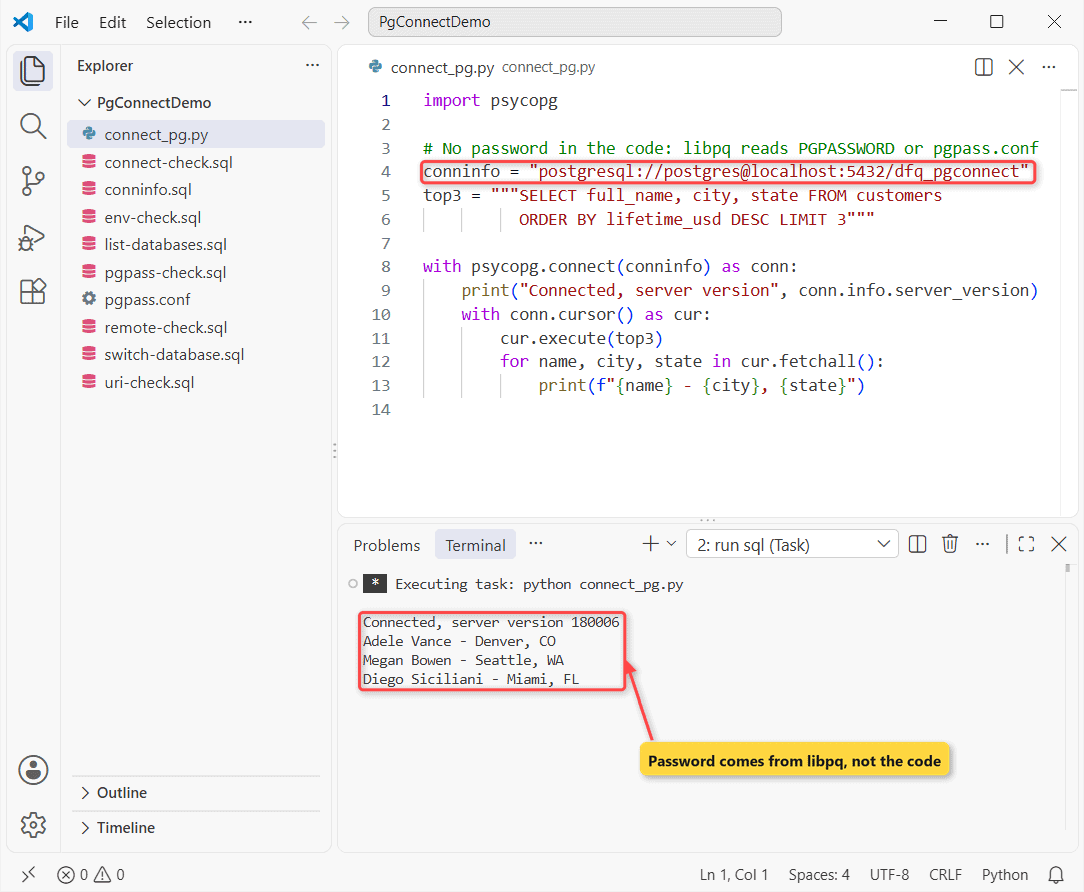
Checkpoint: server_version 180006 means 18.6, and the ORDER BY … DESC query returns Adele Vance ($2,315.75) first.
Connect to a Remote PostgreSQL Server
A remote server must listen on a network address, and a pg_hba.conf rule must allow your host. Here’s where mine listens and which file holds its rules:
psql -h localhost -U postgres -d dfq_pgconnect -f remote-check.sqlHere’s remote-check.sql:
SHOW listen_addresses;
SHOW hba_file;
Output:
 listen_addresses
------------------
 *
(1 row)

                    hba_file
-------------------------------------------------
 C:/Program Files/PostgreSQL/18/data/pg_hba.conf
(1 row)
The default is localhost (loopback only); the EDB installer for Windows sets it to *, all interfaces. More in PostgreSQL listen_addresses. To open the server to your network, edit:
# postgresql.conf  (needs a server restart)
listen_addresses = '*'

# pg_hba.conf  (TYPE DATABASE USER ADDRESS METHOD)
host    all    all    192.168.1.0/24    scram-sha-256
Run SELECT pg_reload_conf();, open TCP 5432 in the firewall, and connect with psql -h db01.example.com -U alex_reader -d dfq_pgconnect.
Connect through an SSH tunnel
If 5432 must stay closed, tunnel over SSH (OpenSSH ships with Windows 11, macOS and Linux):
ssh -L 6432:localhost:5432 admin@db01.example.com

# in a second terminal
psql -h localhost -p 6432 -U alex_reader -d dfq_pgconnect
Connect to AWS RDS or Azure Database for PostgreSQL
Use the console’s endpoint as the host (RDS: Connectivity & security; Azure: Overview) and require TLS:
psql "host=<server-name>.postgres.database.azure.com port=5432 dbname=postgres user=<admin-user> sslmode=require"Timeouts usually mean public access or inbound rules for 5432; see could not connect to the PostgreSQL server.
Troubleshooting PostgreSQL Connection Errors
I triggered these on purpose; the messages are exactly what psql 18 printed.
Connection refused
psql -h localhost -p 5433 -U postgres -d dfq_pgconnect -f connect-check.sqlpsql: error: connection to server at "localhost" (::1), port 5433 failed: Connection refused (0x0000274D/10061)
Is the server running on that host and accepting TCP/IP connections?
connection to server at "localhost" (127.0.0.1), port 5433 failed: Connection refused (0x0000274D/10061)
Is the server running on that host and accepting TCP/IP connections?Nothing listens on 5433. Check the service and SHOW port;; remotely, also listen_addresses and the firewall.
password authentication failed for user
psql -h localhost -U alex_reader -d dfq_pgconnect -f connect-check.sqlpsql: error: connection to server at "localhost" (::1), port 5432 failed: FATAL: password authentication failed for user "alex_reader"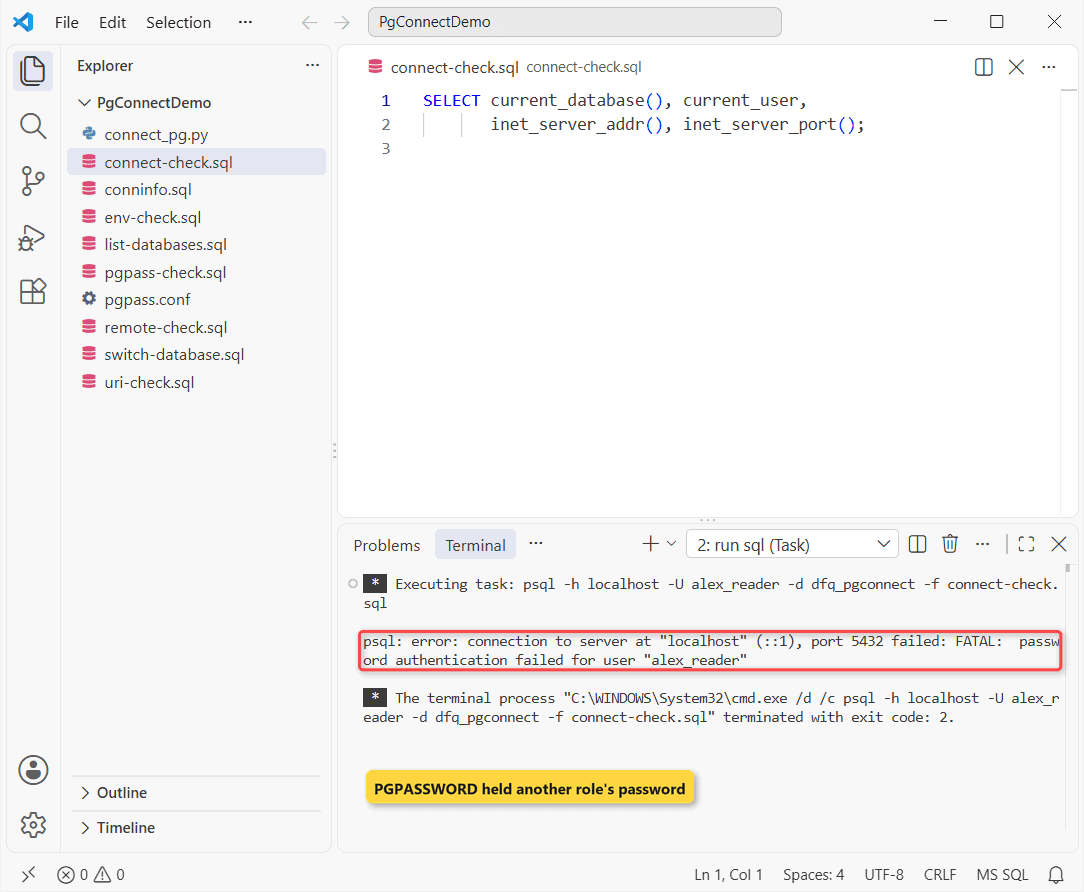
PGPASSWORD held another role’s password. Clear stale variables, check pgpass.conf, or reset it with ALTER ROLE. More causes: PostgreSQL password authentication failed.
database does not exist
psql -h localhost -U postgres -d dfq_pgconect -f connect-check.sqlpsql: error: connection to server at "localhost" (::1), port 5432 failed: FATAL: database "dfq_pgconect" does not existOne typo is enough. Copy the name from \l; quoted names are case-sensitive, and without -d psql looks for a database named after your user.
Peer authentication failed (Linux)
You ran psql -U someone over the local socket as a different Linux user. Use sudo -u postgres psql, or add -h localhost.
Where to Take It Next: Which Connection Method Should You Use?
| Situation | Method I’d pick |
|---|---|
| Quick admin work at the terminal | psql -h -p -U -d (Step 1) |
| App config, .env files, cloud dashboards | Connection URI (Step 3) |
| Same server all day | PGHOST/PGUSER/PGDATABASE (Step 4) |
| Scheduled scripts and backups | pgpass.conf with -w (Step 5) |
| Browsing tables and writing queries visually | pgAdmin 4 (Step 6) |
| Linux server you administer | sudo -u postgres psql |
Next, schedule a PostgreSQL database backup that uses pgpass.conf, and give each person their own role. When a permission error makes no sense, run \conninfo first.
A few more PostgreSQL guides that pair well with this one:
- Organize tables with PostgreSQL schemas
- Remove a PostgreSQL user you no longer need
- Drop a database from psql safely
- PostgreSQL vs SQL Server for your next project
Frequently Asked Questions
What is the default port to connect to PostgreSQL?
5432. psql and pgAdmin use it when you don’t give a port. Run SHOW port; on the server if a connection is refused.
How do I connect to a PostgreSQL database without typing a password?
Store the login in a password file (pgpass.conf on Windows, ~/.pgpass on Linux) in the format hostname:port:database:username:password, then connect with -w. The PostgreSQL password file docs list every rule.
What is the PostgreSQL connection string format?
postgresql://user@host:port/dbname?param=value, or the keyword form host=… port=… dbname=… user=…. Both are described in the libpq connection strings documentation.
How do I check which database I’m connected to in psql?
Run \conninfo for the database, user, host and port, or SELECT current_database(), current_user;. The psql prompt also starts with the database name.
How do I switch to another database in psql?
Use \c dbname (or \connect dbname). psql opens a new connection and keeps your user, host and port unless you pass new ones.

Kumar Saurabh is a freelance software engineer who builds web and mobile apps with Next.js, React, Flutter and Python. From 2021 to 2024, Saurabh worked as an IT analyst and developer at TSInfo Technologies, writing technical articles on SQL and PostgreSQL. Saurabh writes the PostgreSQL, MySQL, MariaDB and MongoDB tutorials on DatabaseFAQs.com and holds a Master of Computer Applications (MCA) from Chandigarh University.